
Local Models
One of the most powerful features of LoneWriter is its ability to operate privately using models that run on your own computer.
By using a local model, your texts do not leave your device, and no internet connection is required to use artificial intelligence.
Option A: Ollama
Ollama is the recommended tool for running artificial intelligence models on Windows, Mac, or Linux easily and efficiently.
Setup Steps:
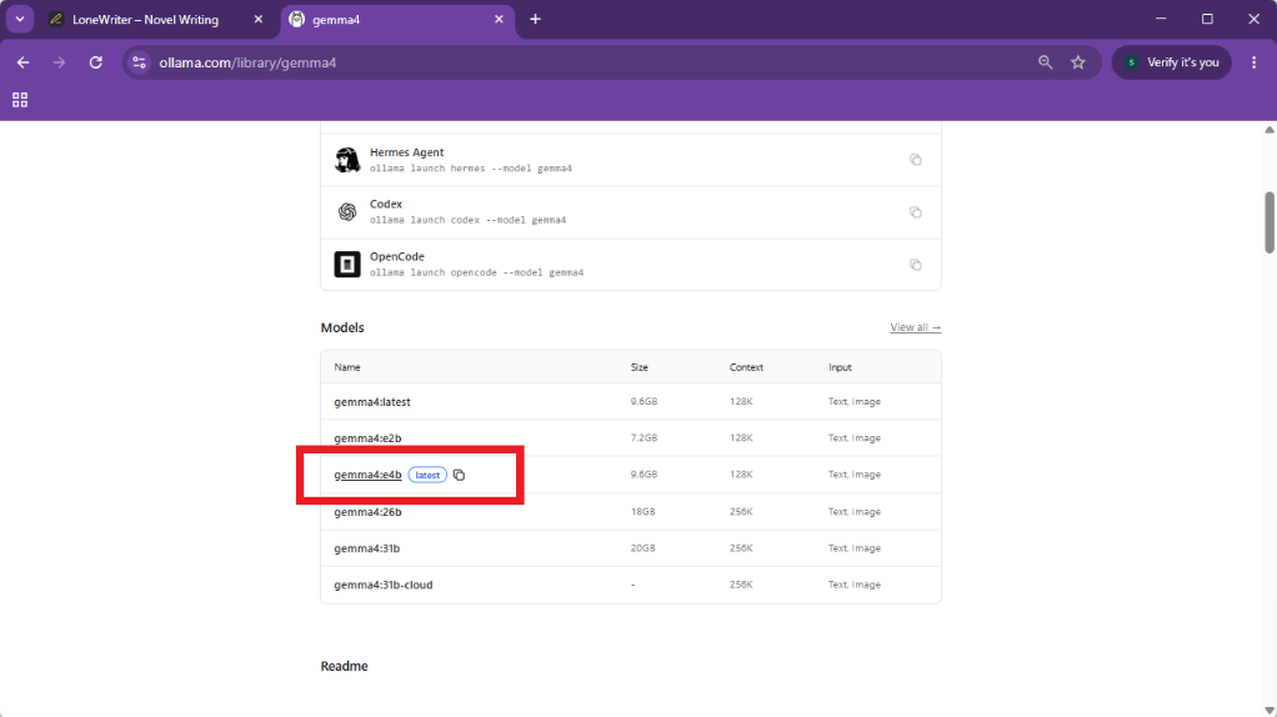
- Search for the model you want to run on the official Ollama website. In this example, we will use Gemma 4.
- On the model page, select and copy the Model ID with the parameters that best fit your hardware (e.g.,
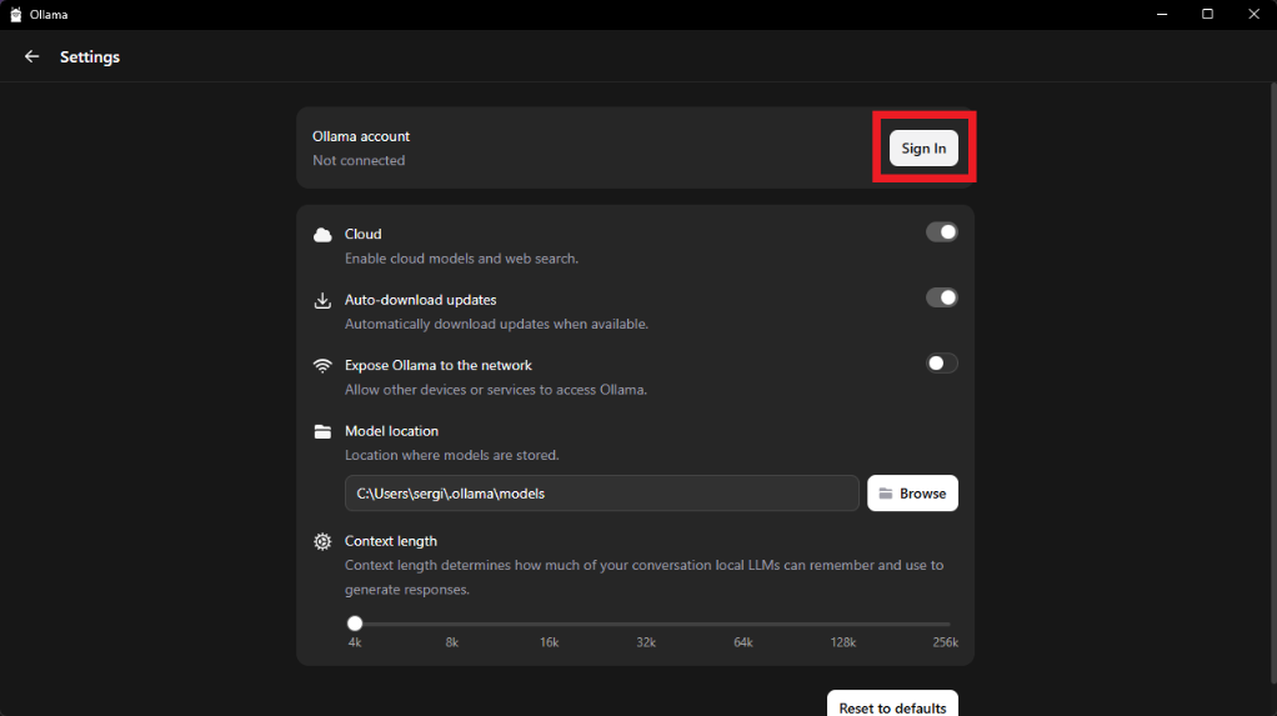
gemma4:e4b). - Once Ollama is downloaded and installed, go to the Settings section and log in with your account.
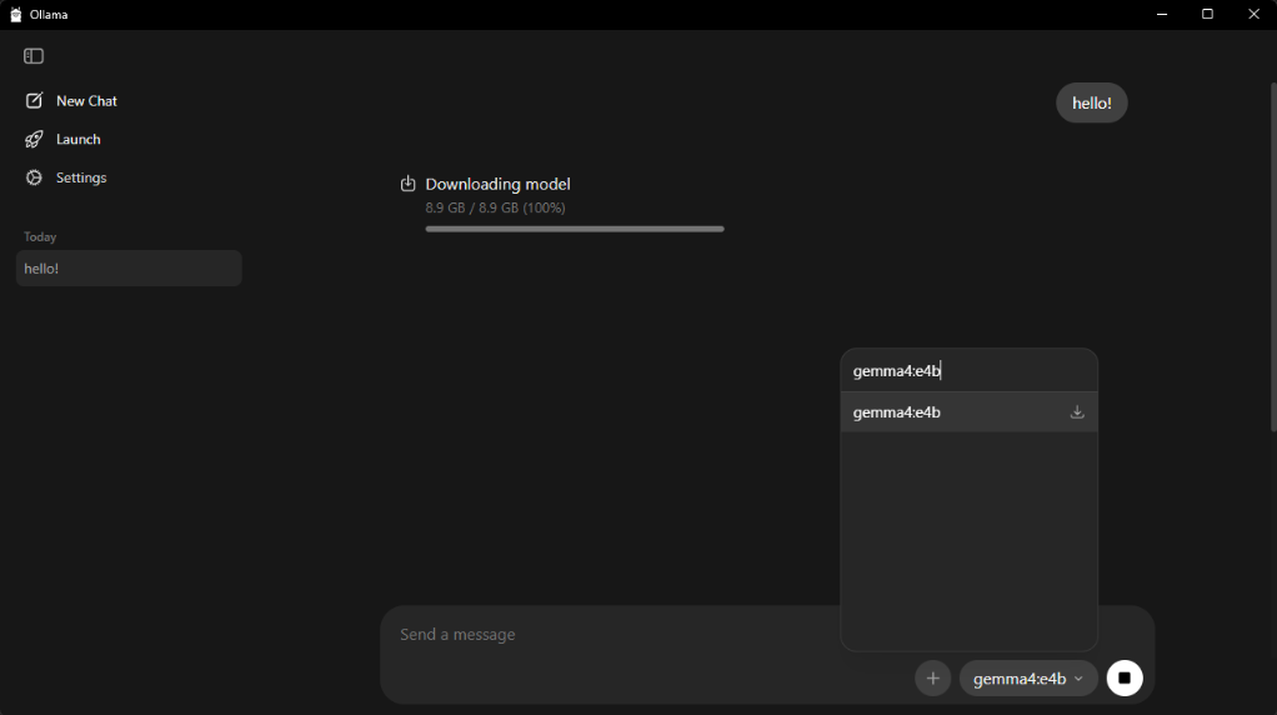
- Once logged in, search for the model with the ID you previously copied and download it directly from the Ollama application. You will need to start a chat with any message to "force" the model download.
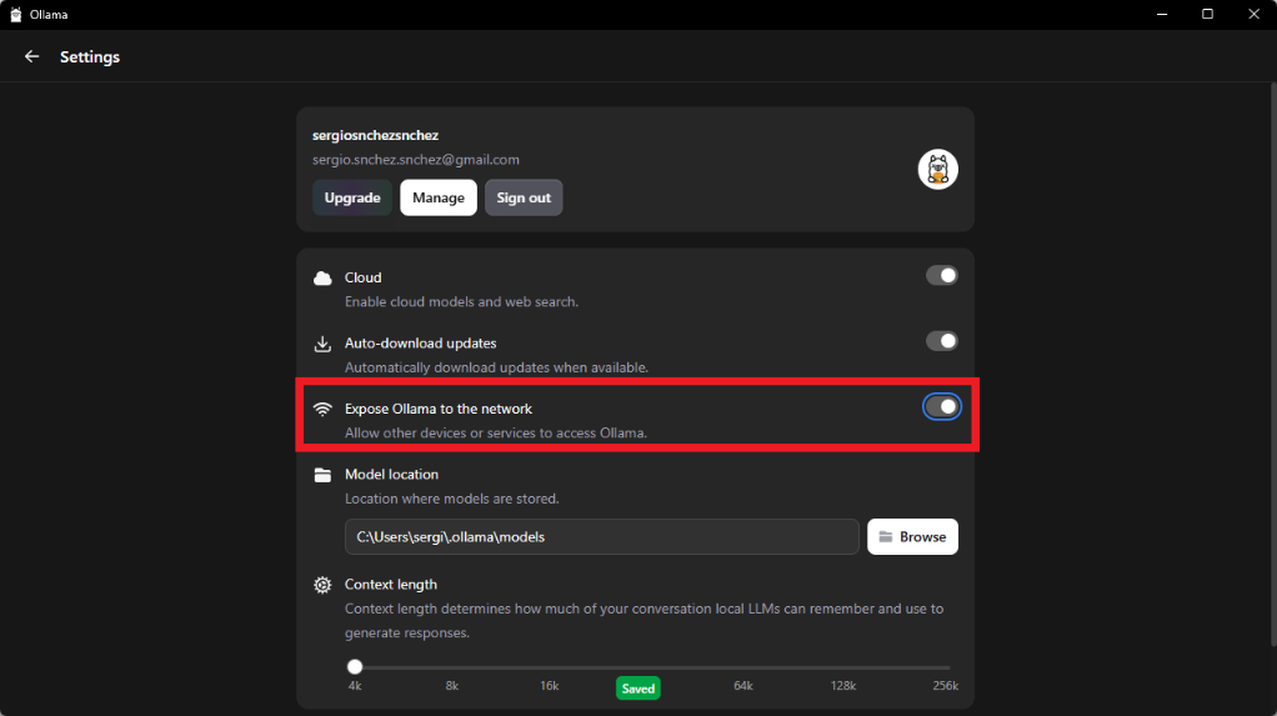
- Finally, in the Settings, activate the "Expose Ollama to the network" option to allow LoneWriter to communicate with the server.
- Finally, you can copy the Model ID and the Server URL (ensuring it ends in
/v1) into LoneWriter.

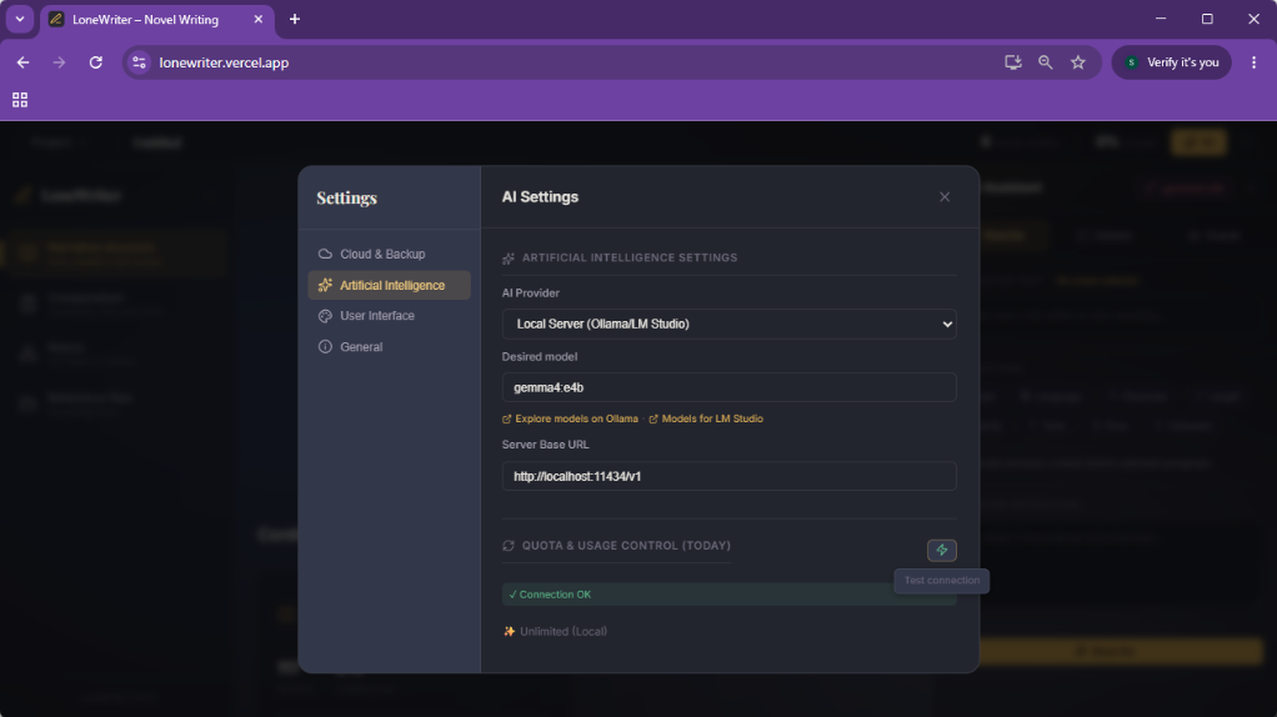
Connection with LoneWriter:
- In LoneWriter, go to Settings > Artificial Intelligence.
- Select the Local provider.
- In the Server URL field, verify that it shows:
http://localhost:11434/v1(or usehttp://127.0.0.1:11434/v1as an alternative). - In the Model field, enter the exact ID (e.g.,
gemma4:e4b). - Make sure the URL ends in
/v1if you have entered the address manually. - Confirm the connection by clicking the test button.
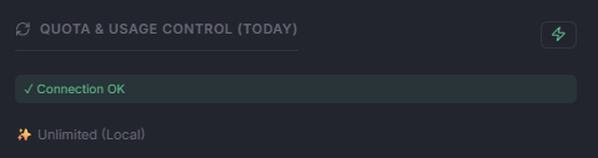
Option B: LM Studio
LM Studio provides an advanced graphical interface to download and manage GGUF models, ideal for those who prefer not to use the terminal.
Setup Steps:
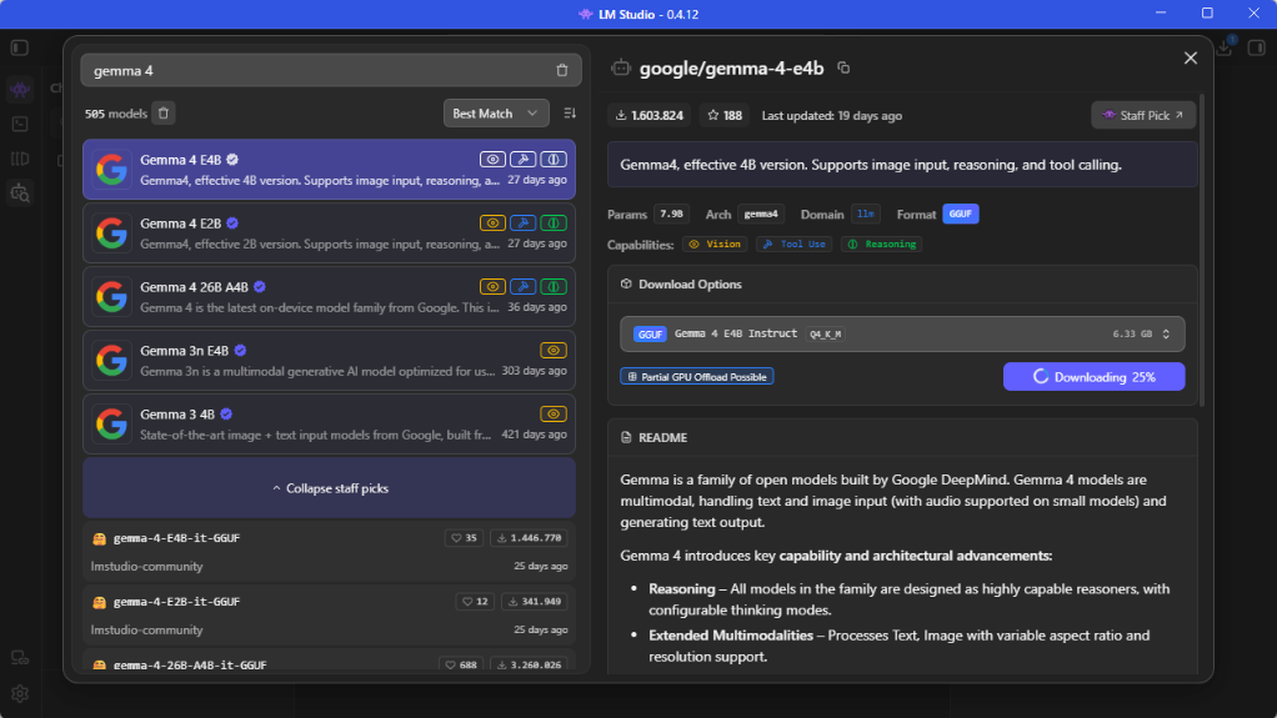
- Once LM Studio is downloaded and installed, search for the desired model (e.g., Gemma 4) on the home screen and download it.
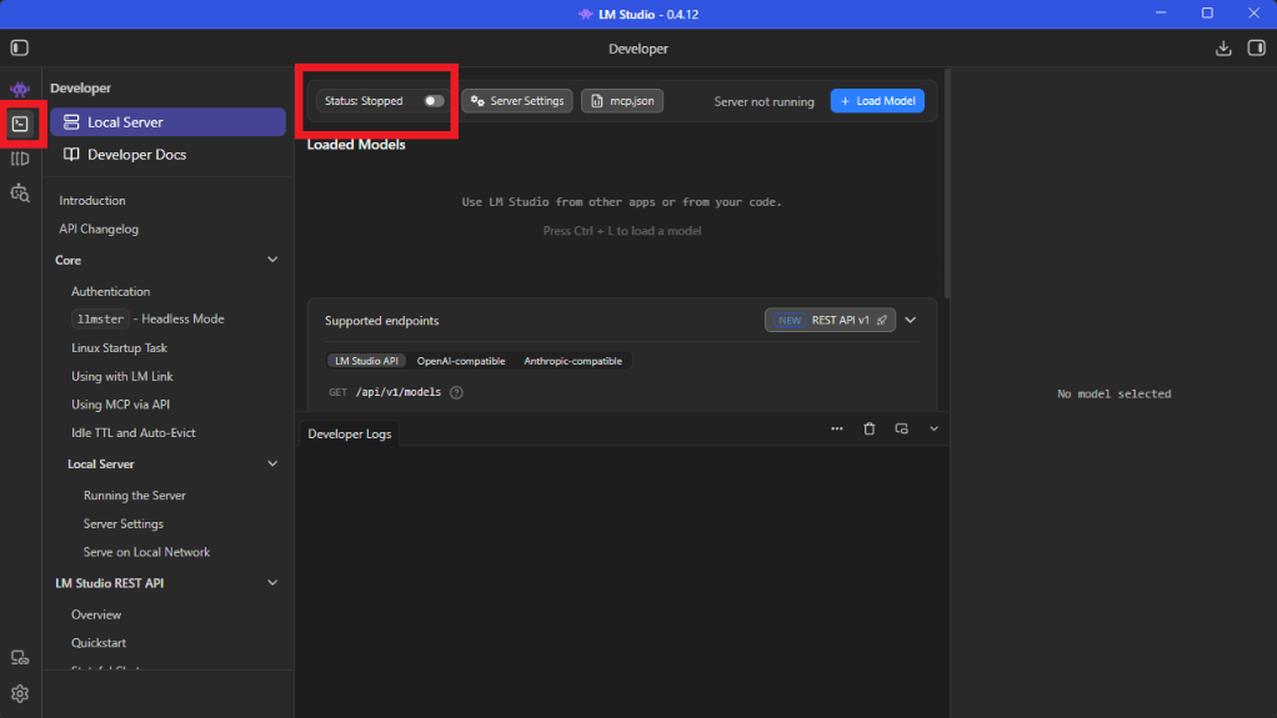
- With the model downloaded, access the Developer section from the left sidebar (terminal icon) and activate the Local Server.
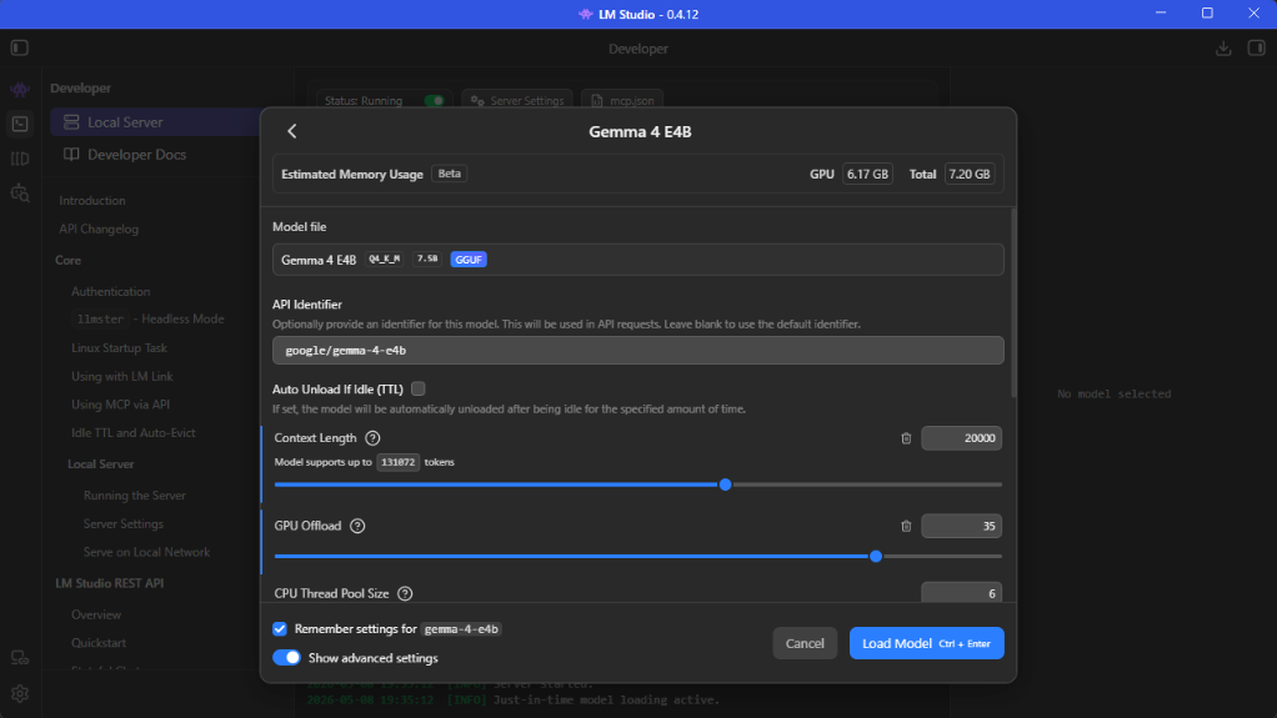
- Click on Load Model to load and select one of the models you have downloaded.
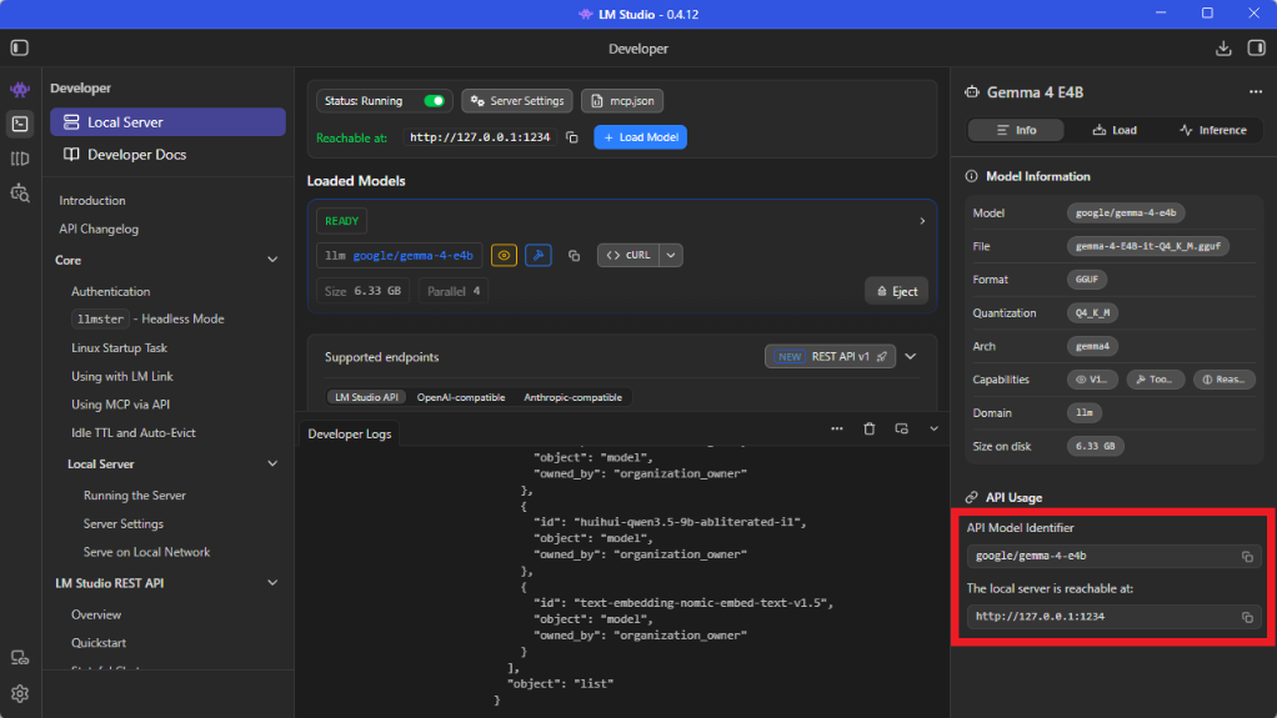
- Once the model is loaded, you can copy the API Model Identifier and the Local Server URL from the right panel.
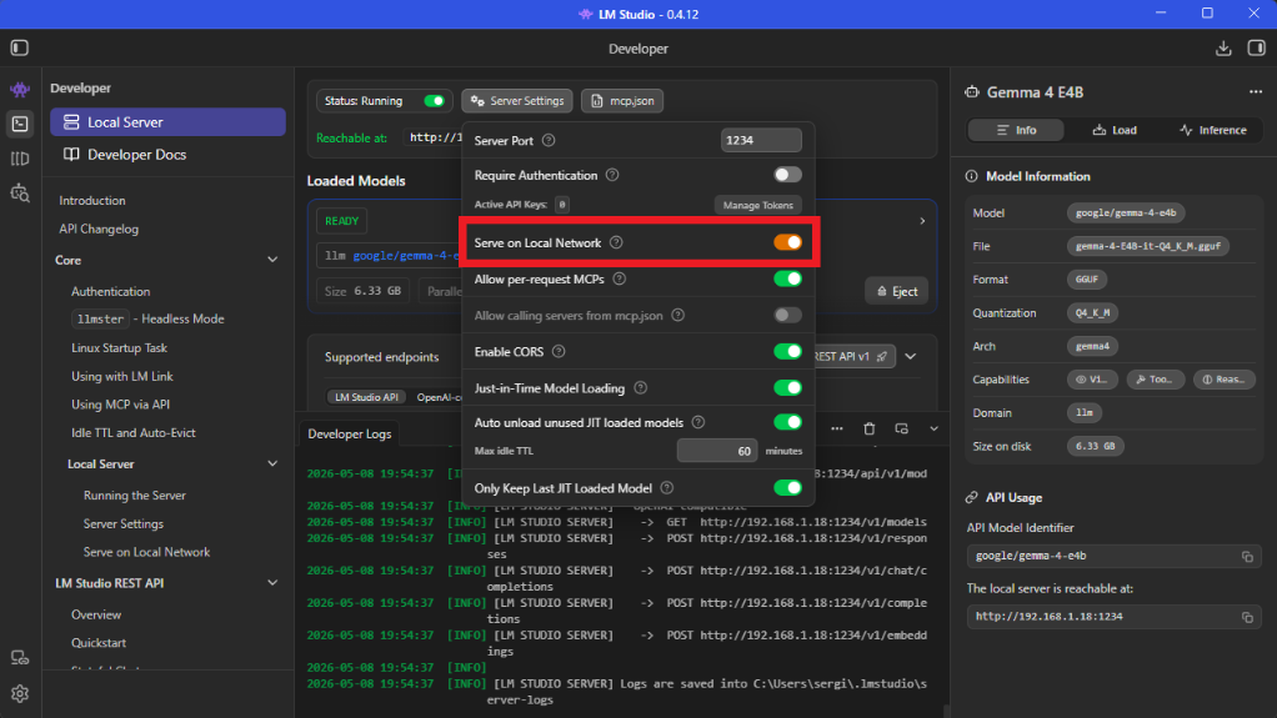
- It is highly recommended to activate the "Serve on Local Network" option in the server settings to ensure smooth communication with the browser.
Connection with LoneWriter:
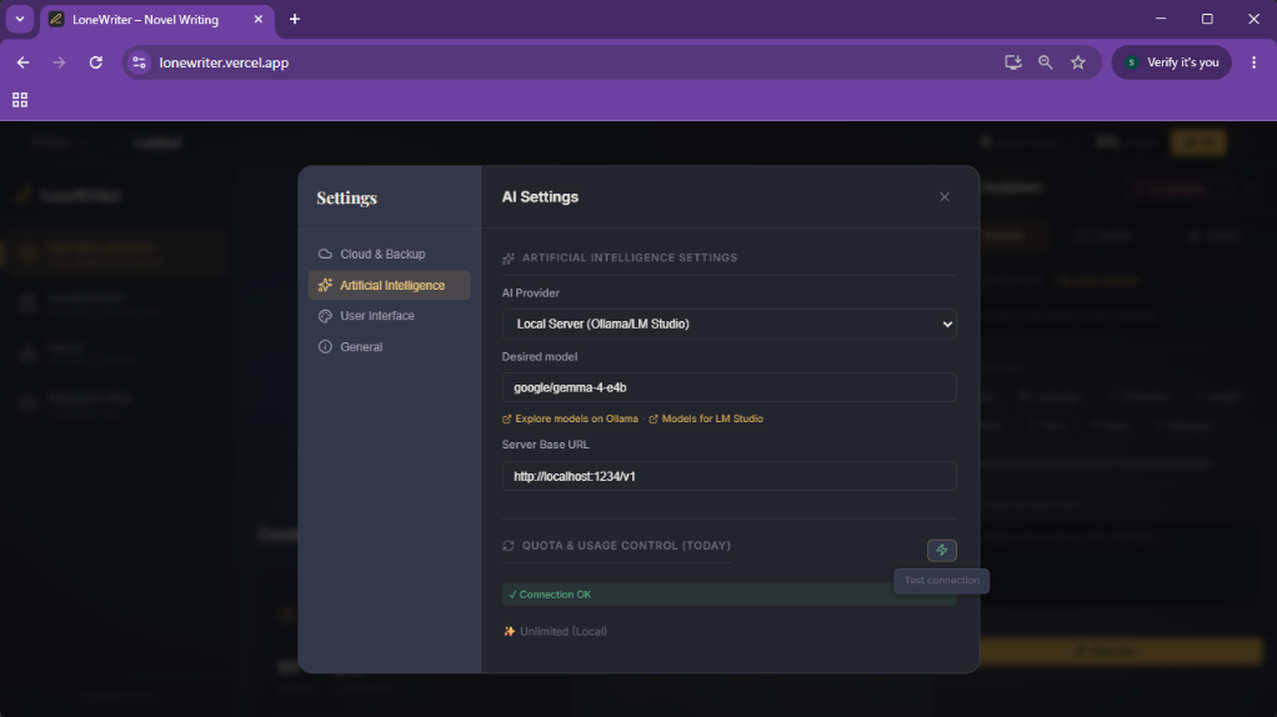
- In LoneWriter, go to Settings > Artificial Intelligence.
- Select the Local provider.
- In the Server URL field, paste the URL copied from LM Studio (usually
http://localhost:1234/v1orhttp://127.0.0.1:1234/v1). - In the Model field, paste the API Model Identifier.
- Make sure to add
/v1at the end of the URL if LM Studio hasn't included it automatically (e.g.,http://localhost:1234/v1). - Confirm the connection by clicking the test button.
Hardware Requirements
Running local models requires significant resources:
- 8GB RAM: Small models (1B - 3B parameters).
- 16GB RAM: Standard models (7B - 8B parameters).
- 32GB RAM or higher: Advanced models.
TIP
If your device struggles to run local models, you can opt for cloud models. Check the Model Selection Guide to understand the differences in performance and privacy.
Next step
Once your connection is configured, learn how to use the LoneWriter Editor to bring your story to life.