
Google Drive Synchronization
Although LoneWriter prioritizes local storage to ensure privacy, cloud synchronization is an essential tool to ensure the availability of your projects across different devices and to have automatic backups.
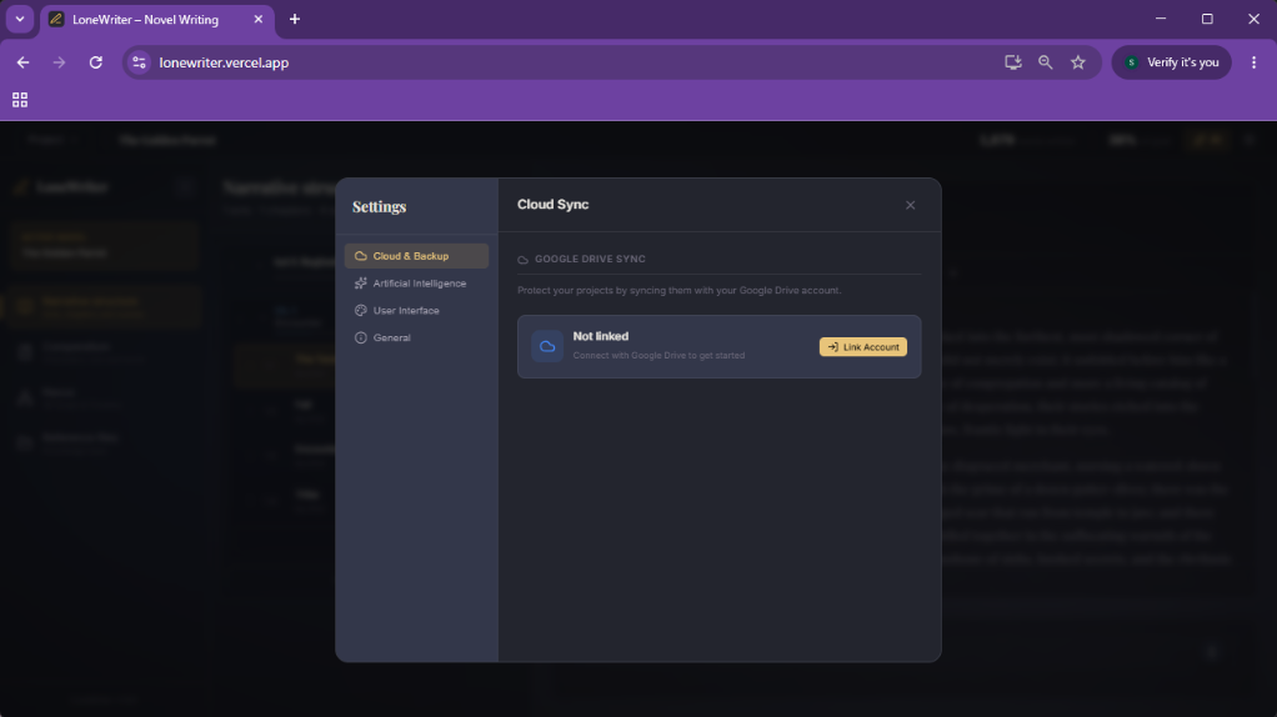
How to Enable Synchronization
LoneWriter uses your own Google Drive account as remote storage. Data does not pass through intermediate servers; the connection is direct between your browser and your personal Google space.
- Access Settings > Cloud.
- Click Connect to Google Drive.
- Authorize the application to access your storage space (LoneWriter will create a specific folder for your projects).
How Synchronization Works
Once activated, the application will manage your files as follows:
- Background Saving: When making major changes, LoneWriter will attempt to synchronize the local version with the cloud copy, including the Compendium, the Manuscript, and Nexus data.
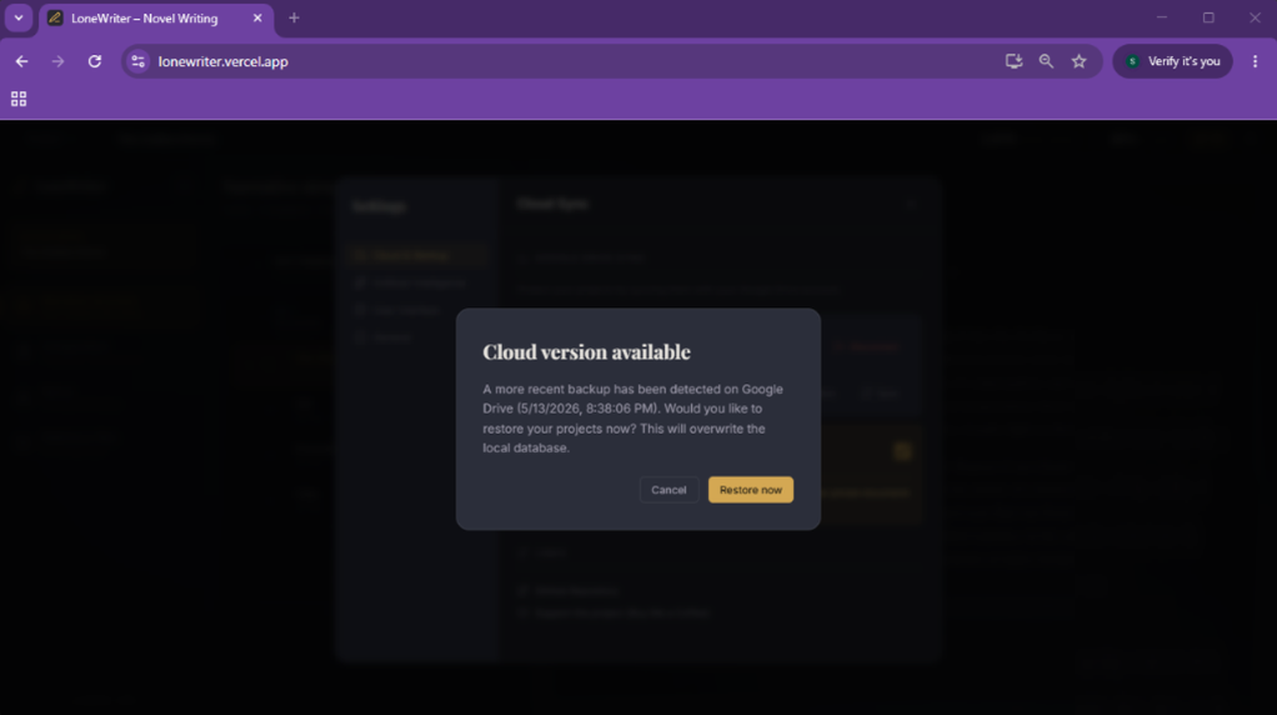
- Conflicts: If you edit the same project on two different devices without a connection, the system will ask which version you want to keep upon reconnecting.
- Connection Status: An indicator in the status bar will inform you if synchronization was successful or if there are changes pending upload.
Privacy in the Cloud
It is important to note that even though data is uploaded to Google Drive, LoneWriter does not have access to other files in your account. The application can only interact with the folder it has created itself.
IMPORTANT
Cloud synchronization is optional. If you choose not to activate it, your data will remain exclusively in your browser's local database.