
API Keys Setup
For LoneWriter to process information using AI, it needs to connect to a Language Model (LLM). The simplest way to do this is through an API Key.
This guide explains how to obtain keys from the main providers step by step.
CAUTION
Privacy: API Keys send your texts to the cloud and could be used to train their models. To ensure total privacy and work offline, we recommend configuring Local Models.
1. Google Gemini
Google currently offers a free tier through Google AI Studio, making it the ideal choice for users who are starting out.
- Visit Google AI Studio.
- Sign in with a Google account.
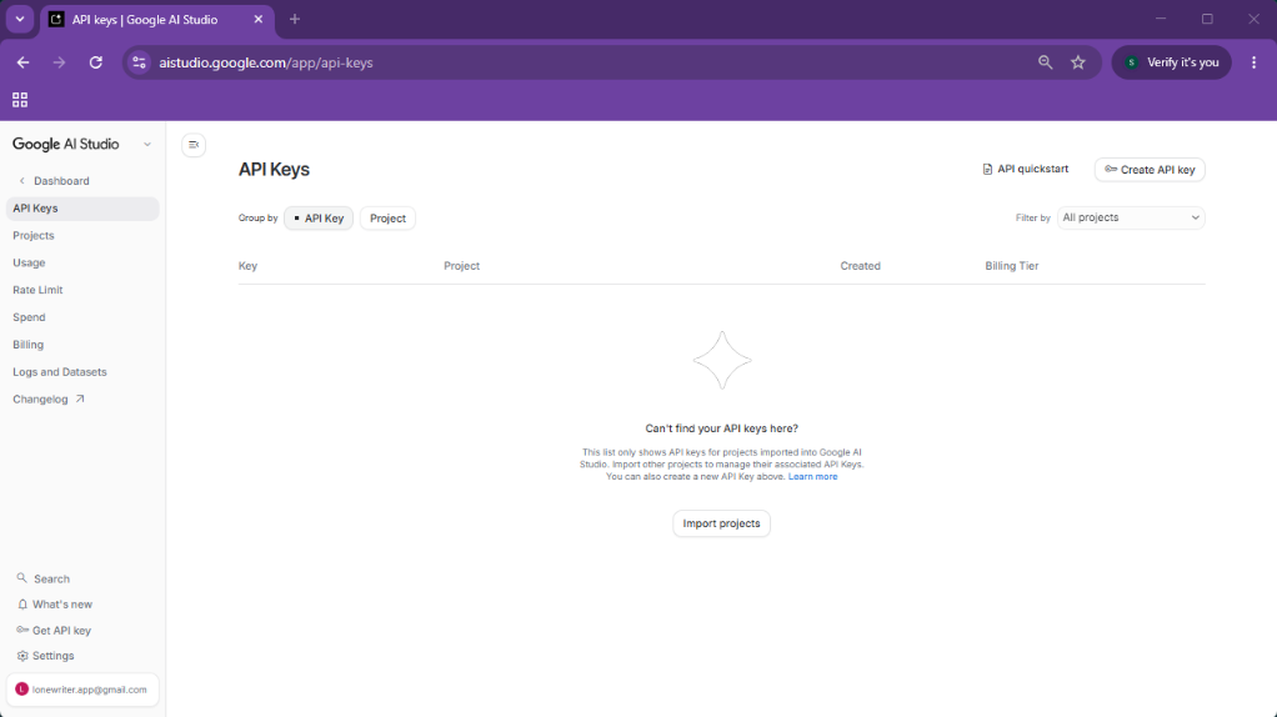
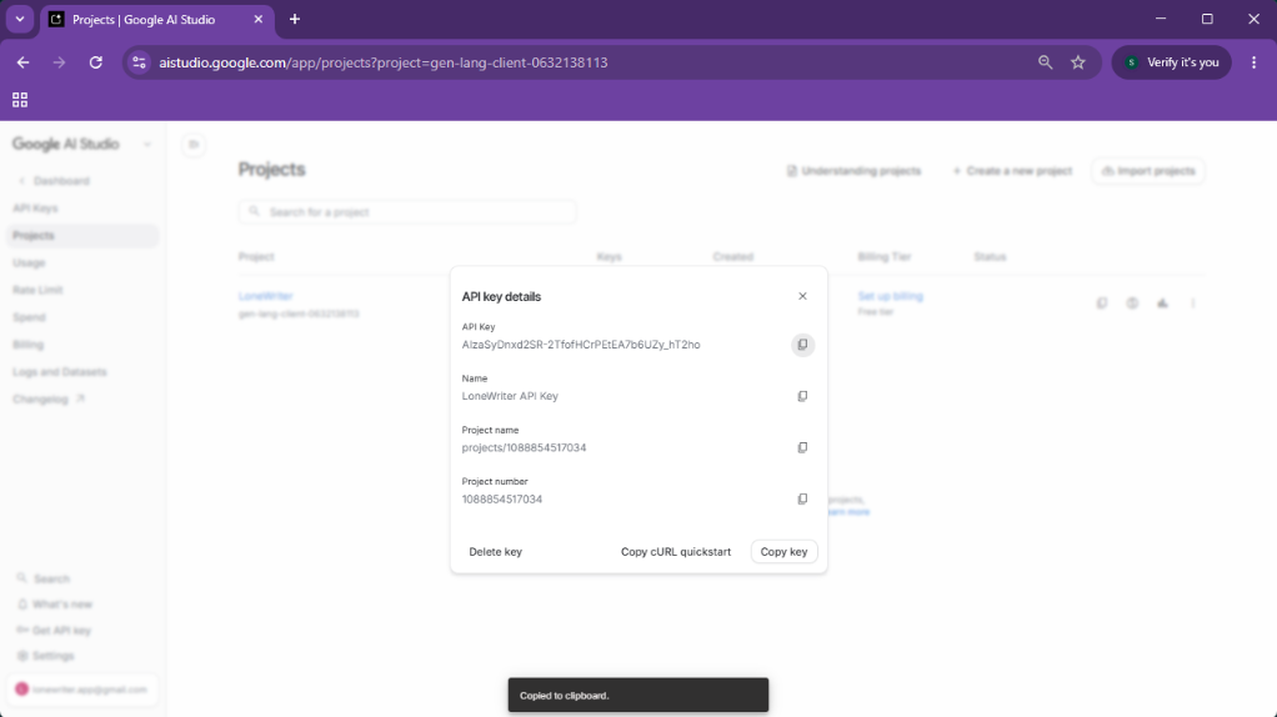
- In the left sidebar, select "Get API key".
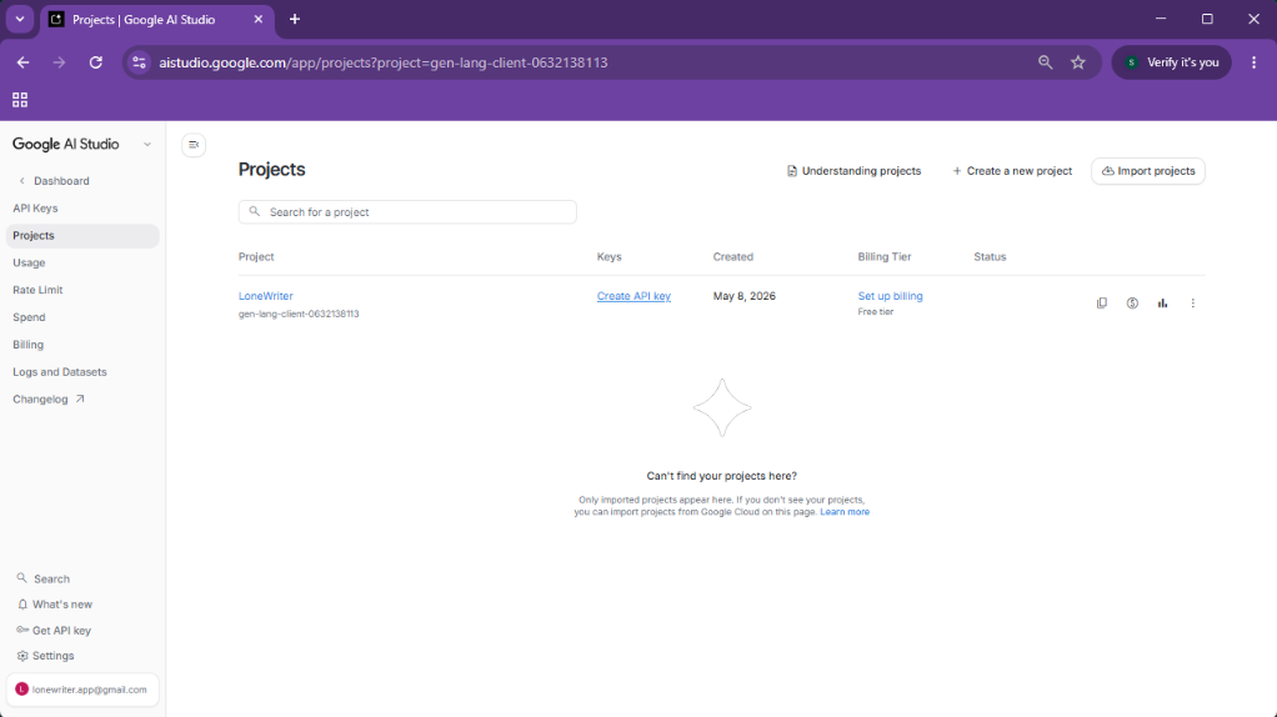
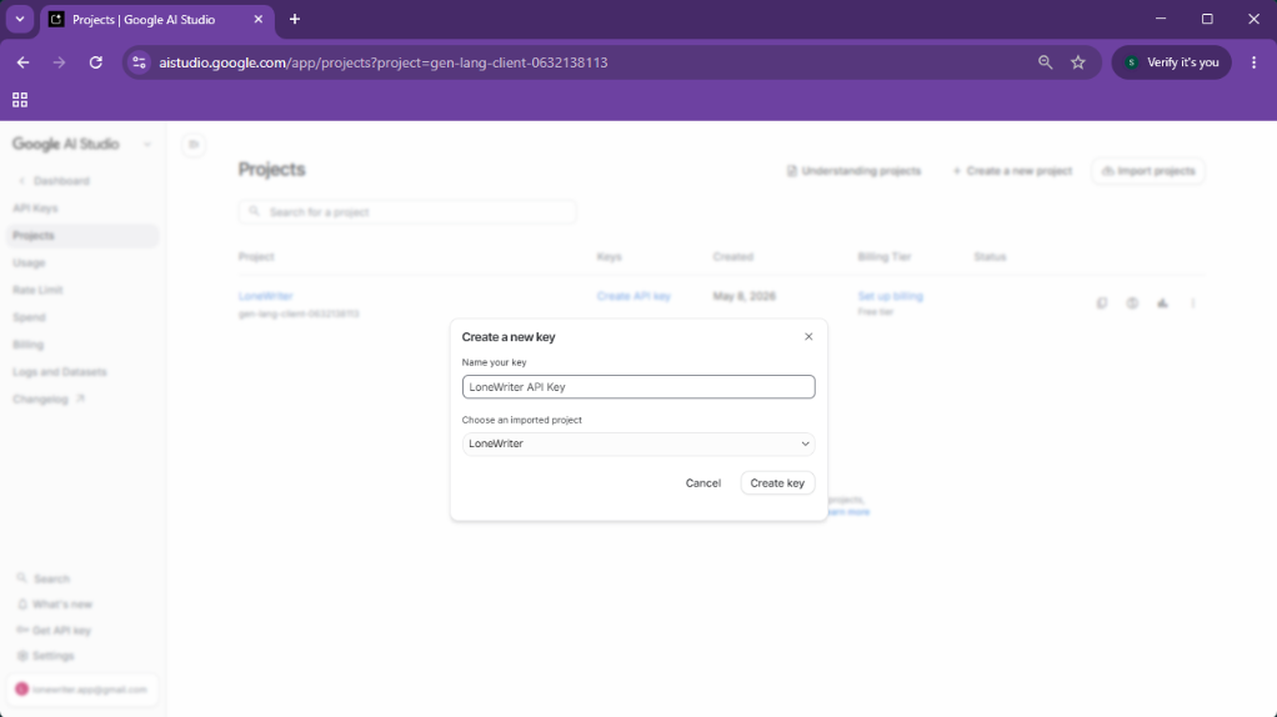
- Click the "Create API key" button.
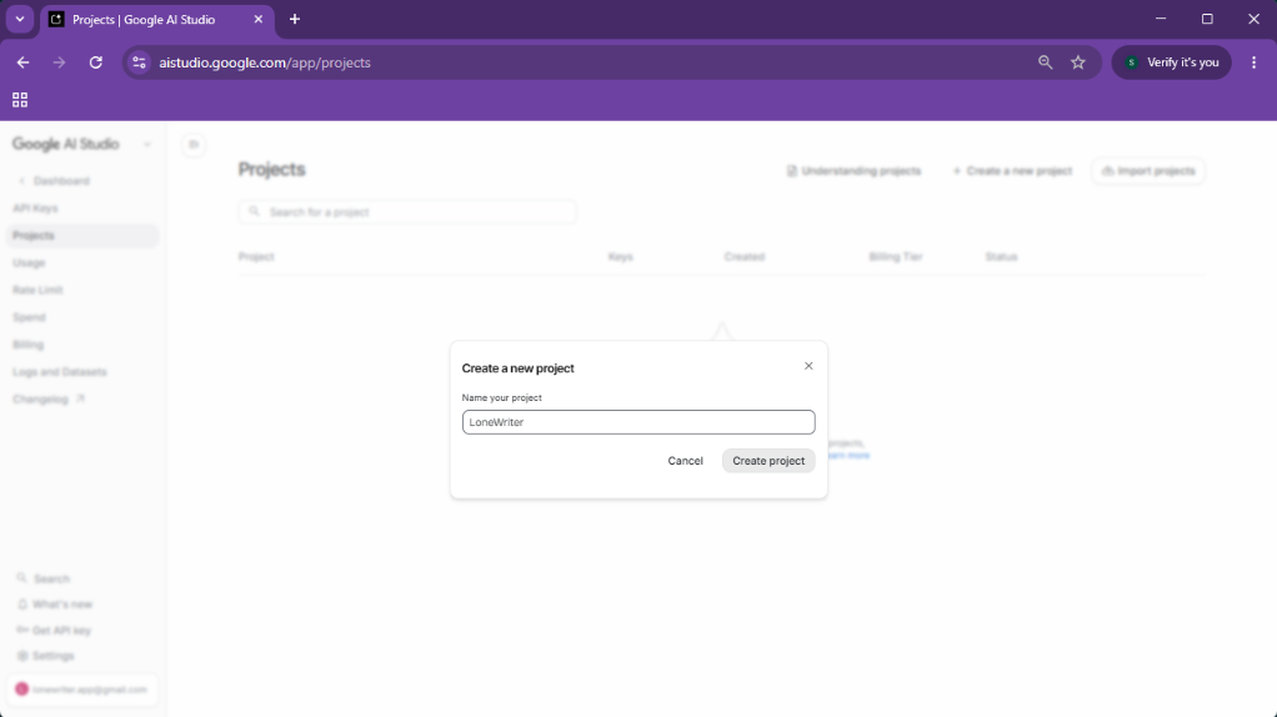
- Note: A project is required to generate the key. If you don't have one by default, the system will allow you to create one manually.
- Copy the generated key.
IMPORTANT
Never share your key. If someone gets it, they could use up your usage quota. LoneWriter stores this key locally in your browser; I don't have servers to store it, nor do I have any access to it.
2. Anthropic (Claude)
Claude is recognized for its reasoning capacity and natural writing style.
Steps:
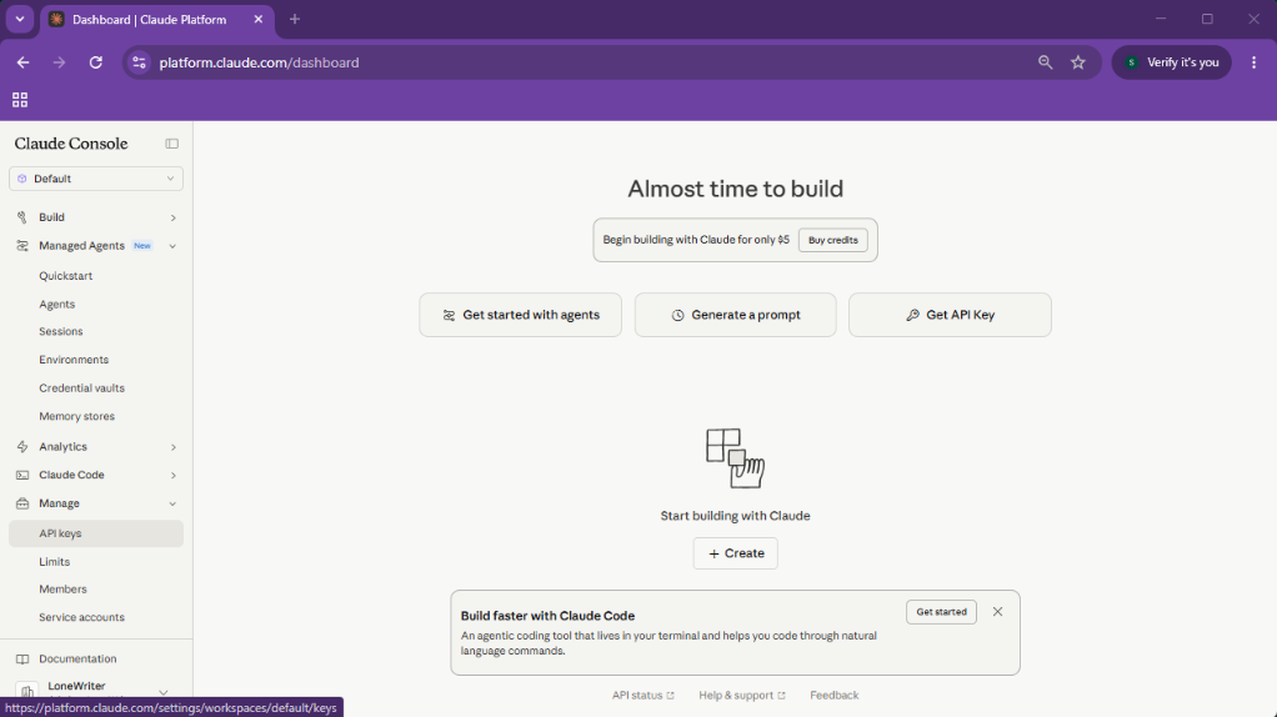
- Visit the Anthropic Console.
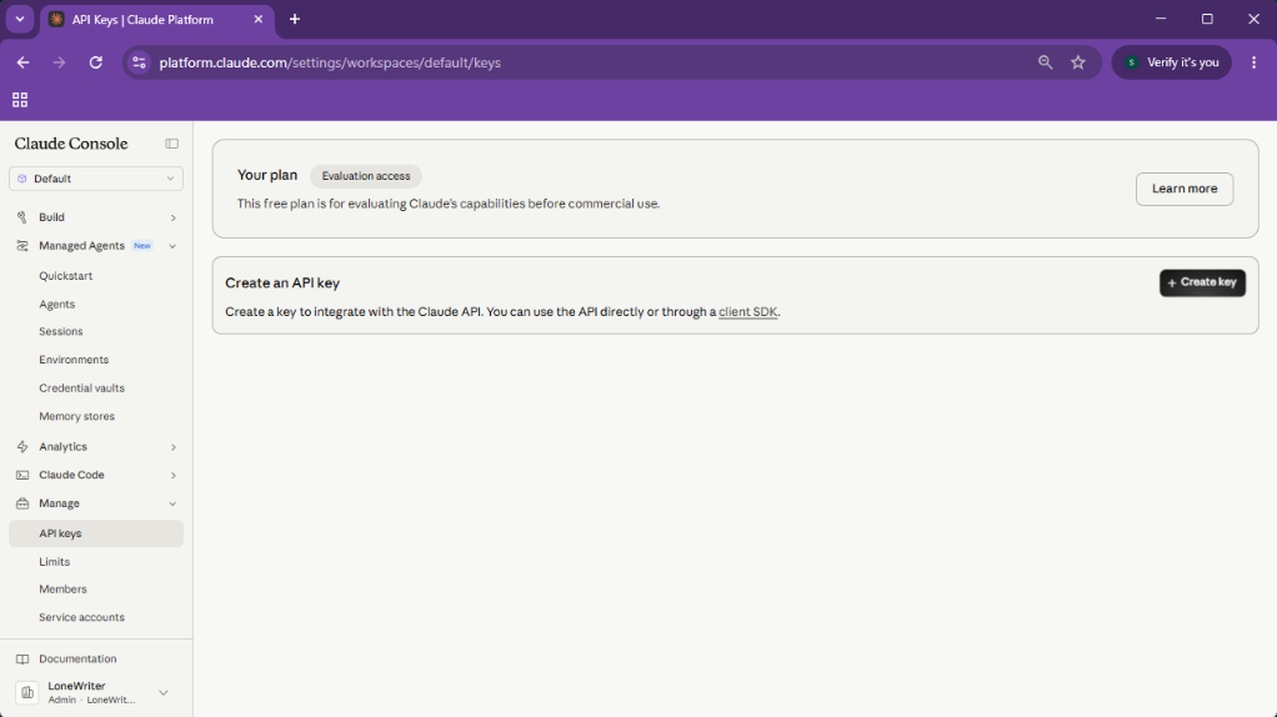
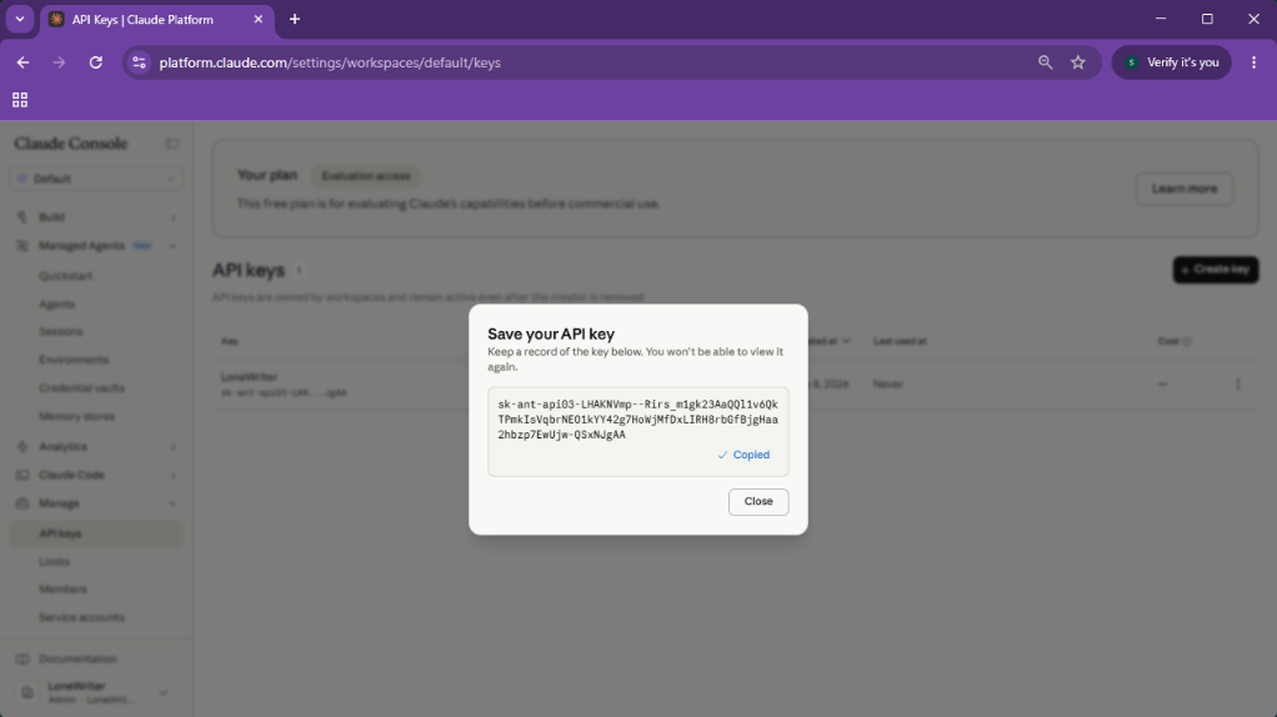
- In the sidebar, click on Manage and then API Keys.
- Click the Create Key button.
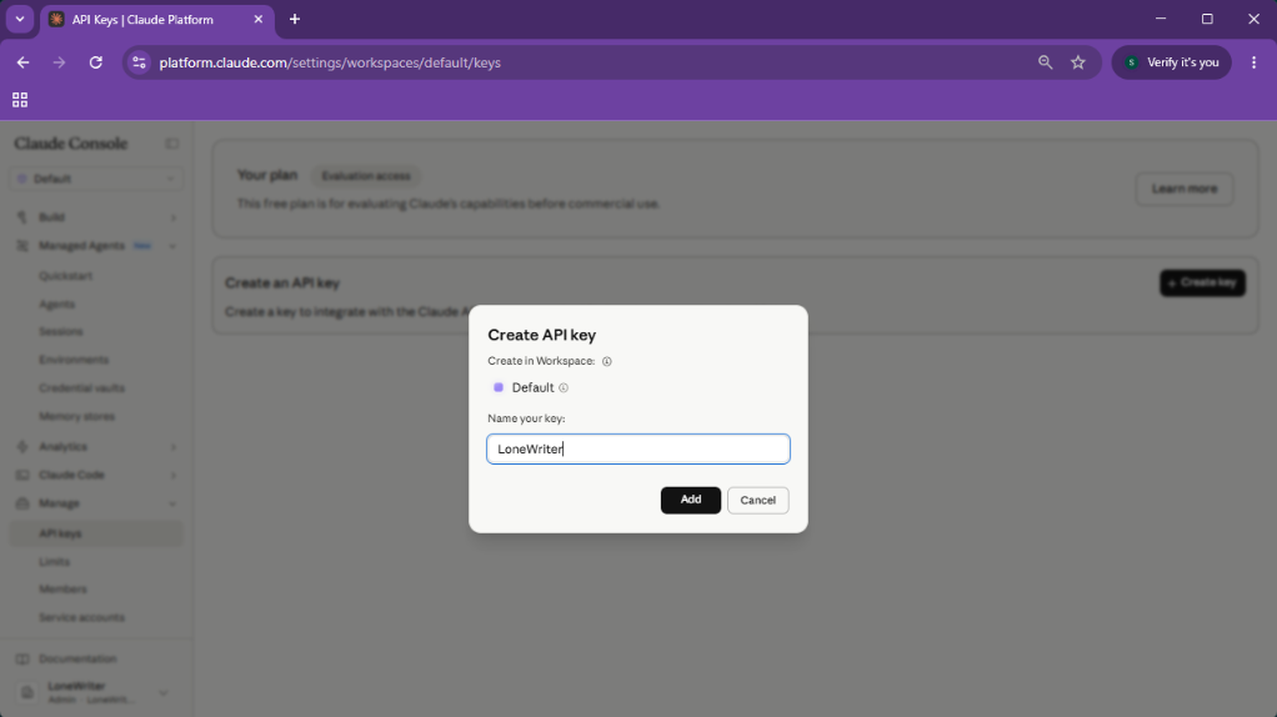
- Assign a name to the new API Key (e.g., LoneWriter).
- Copy the newly created key.
3. OpenAI (ChatGPT)
Note that the OpenAI API is billed independently from the ChatGPT Plus monthly subscription.
Steps:
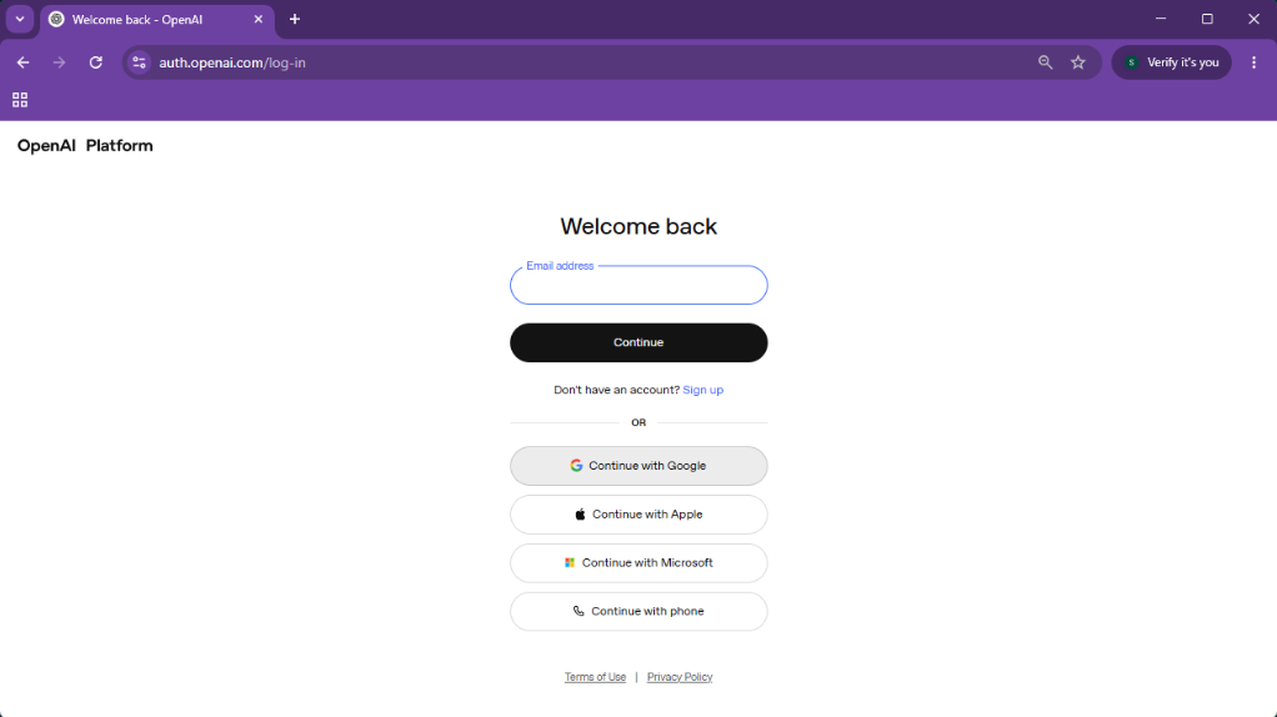
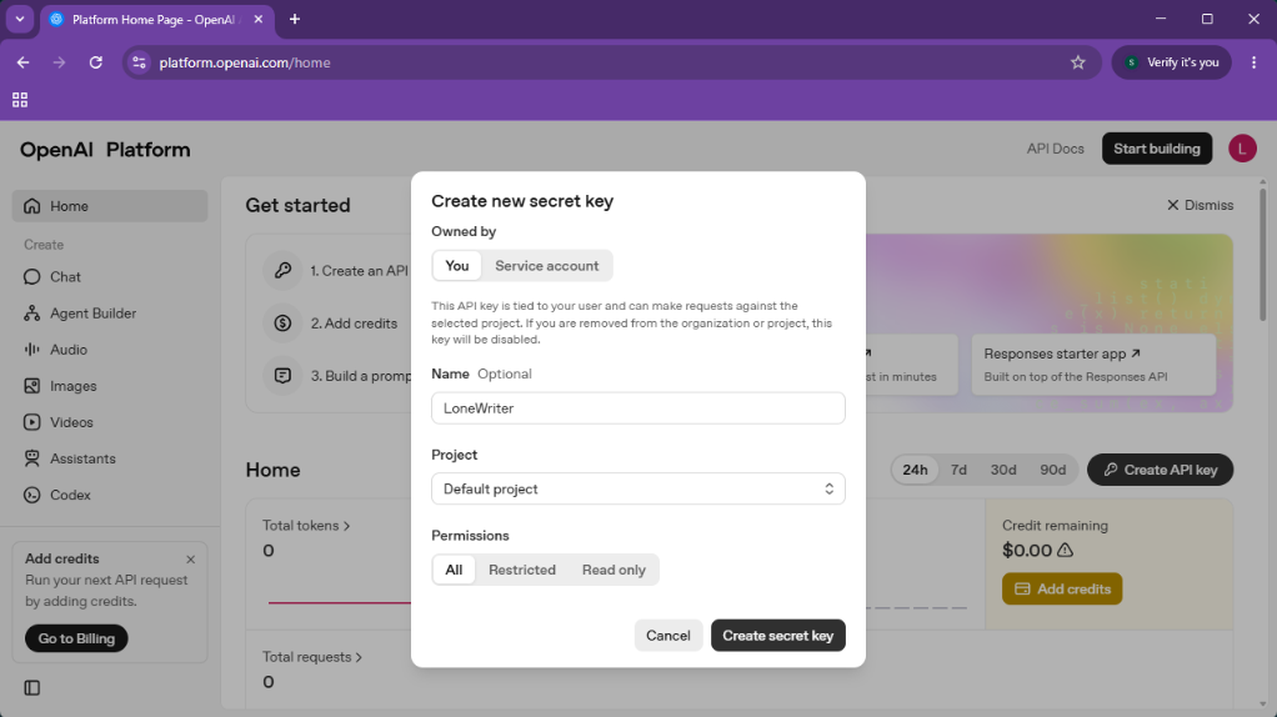
- Access the OpenAI Platform and sign in.
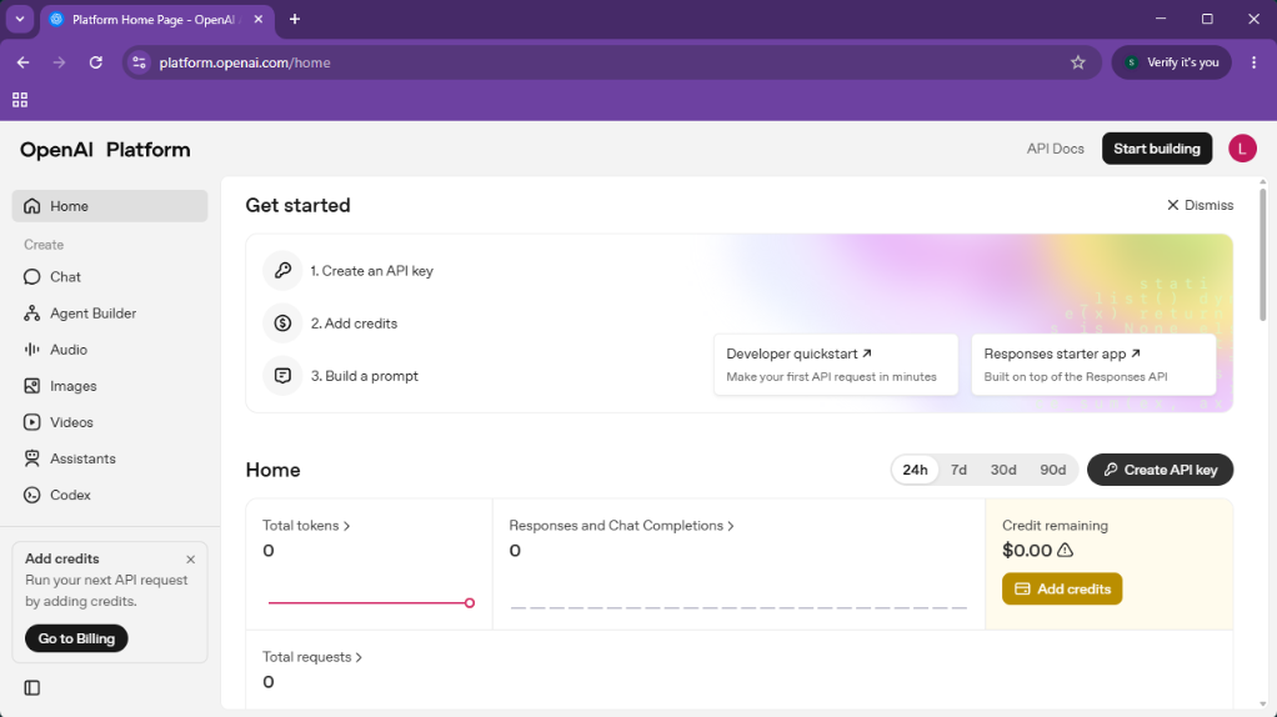
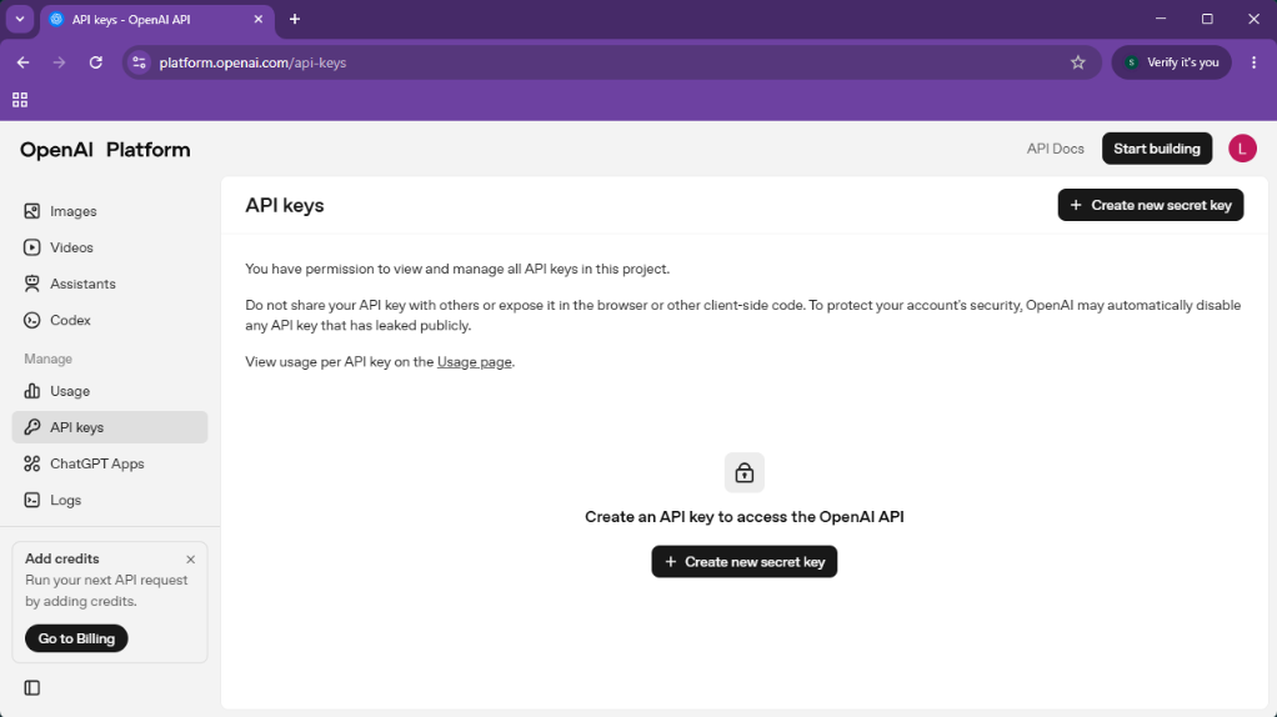
- In the Home or API Keys section, look for the Create API Key or Create new secret key button.
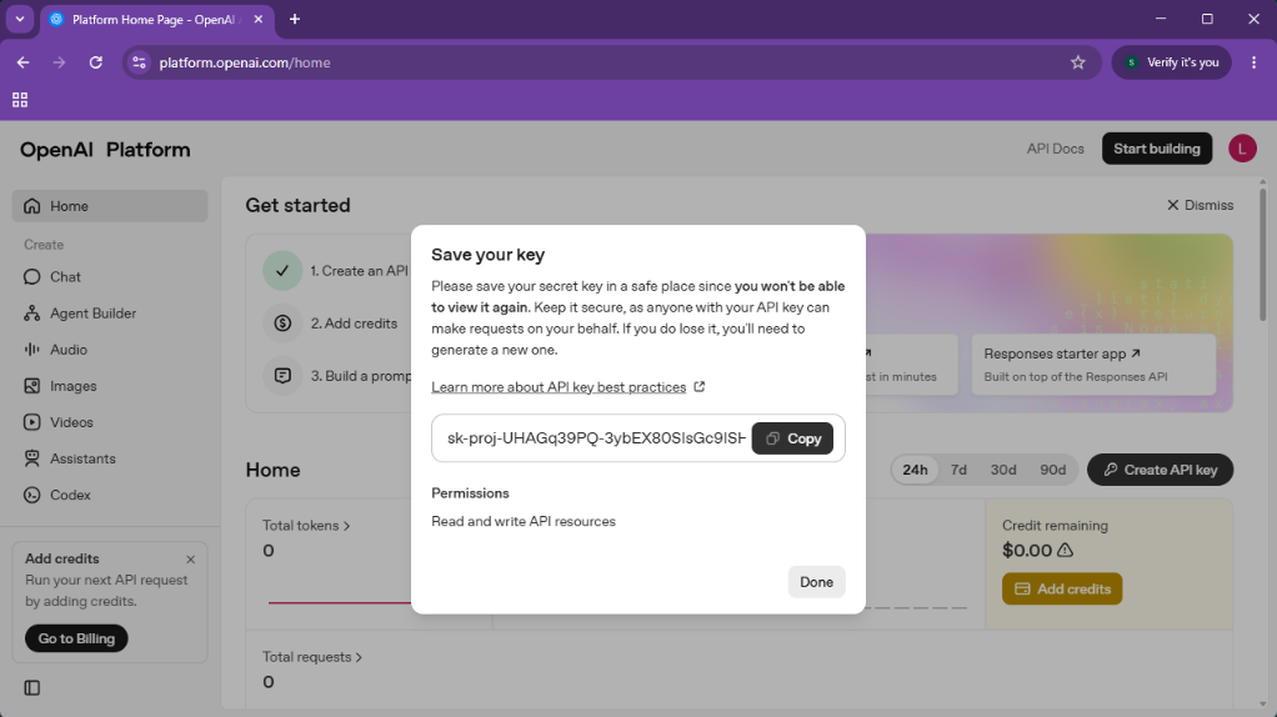
- Assign a name to the Key (e.g., LoneWriter) and click on Create secret key.
- Copy the newly created API Key and save it immediately.
4. OpenRouter
OpenRouter allows access to various models with a single account and a single key.
TIP
On OpenRouter, you can use free LLMs by filtering them by :free or (free) in the model selector.
Steps:
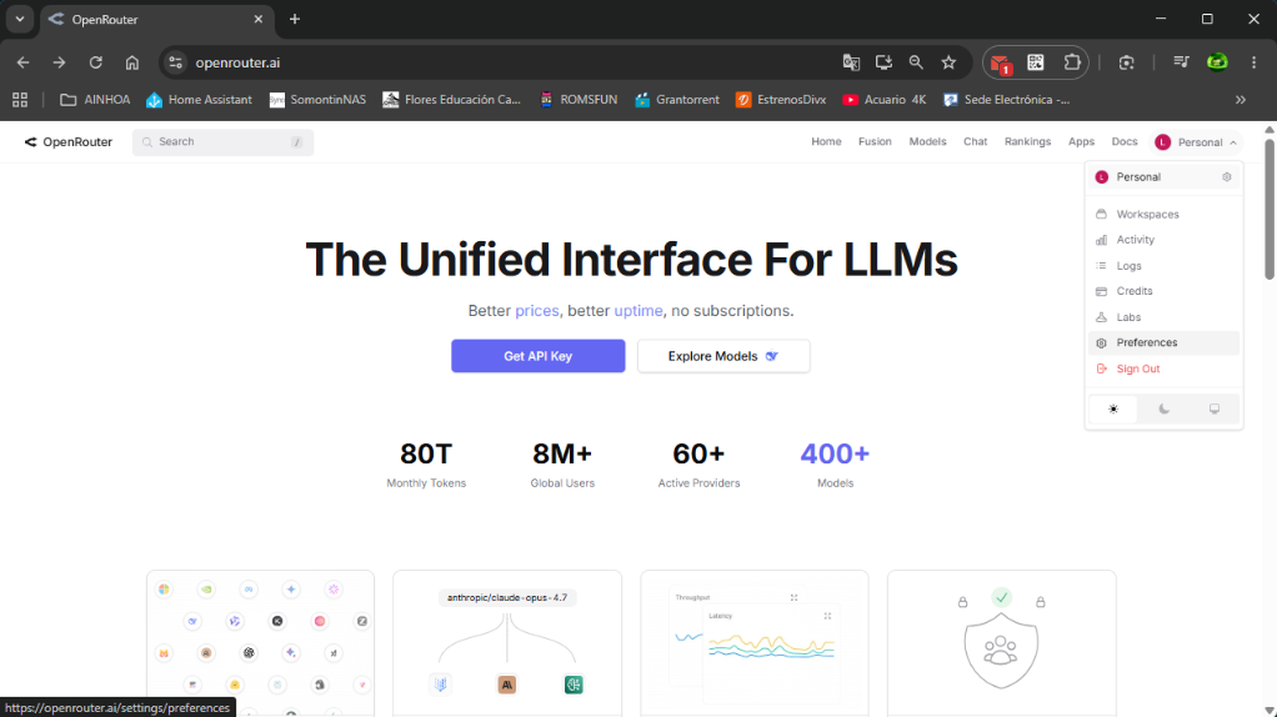
- Create an account at OpenRouter.ai.
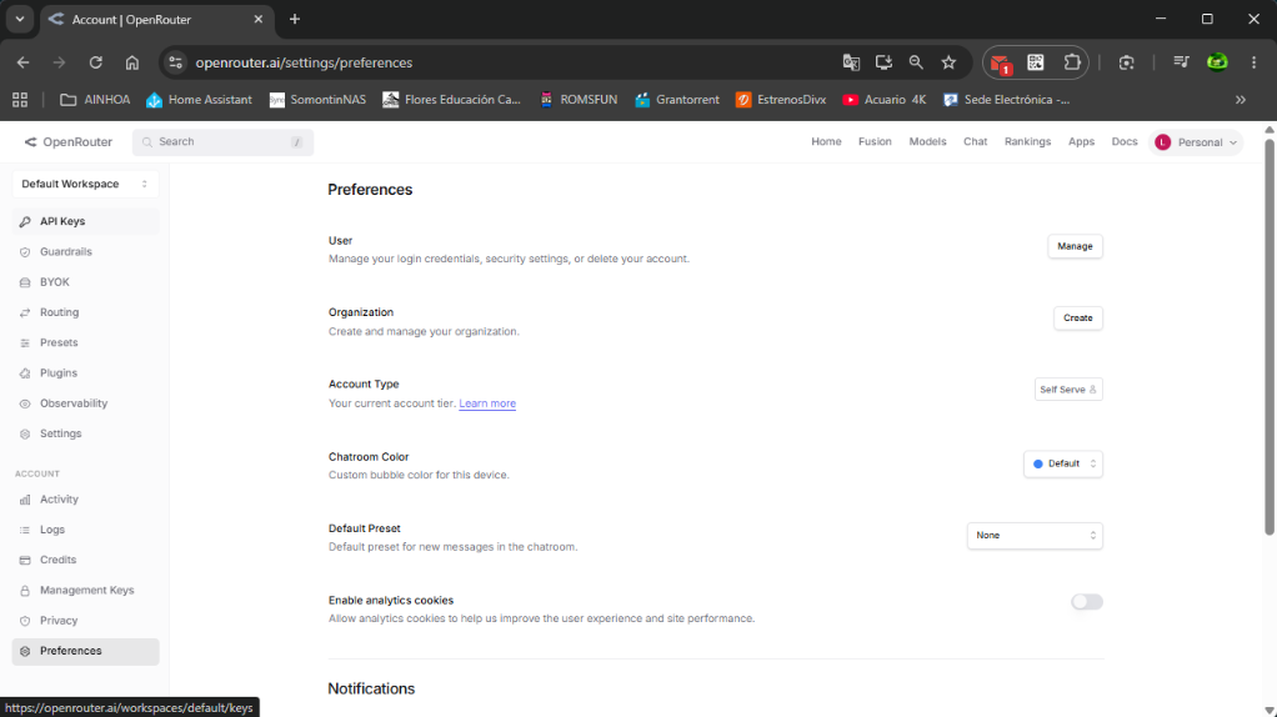
- Click on your profile and go to Preferences.
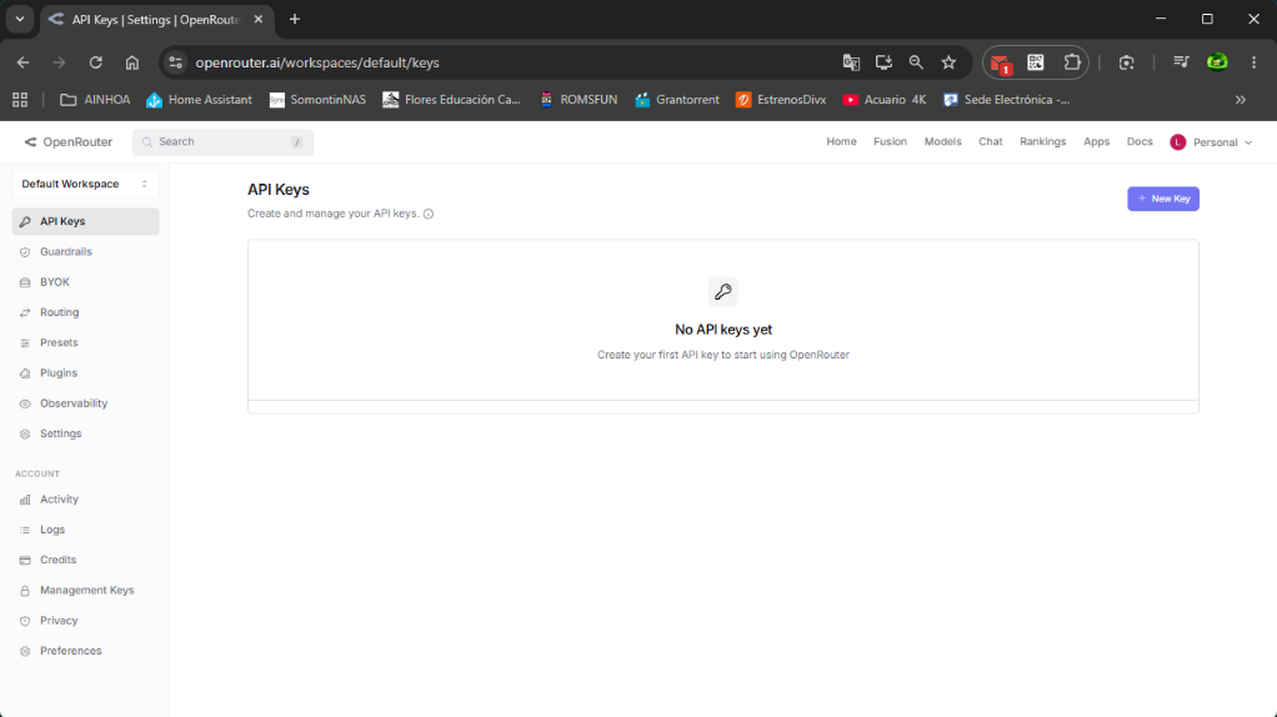
- In the left sidebar, click on API Keys.
- Click the + New Key button.
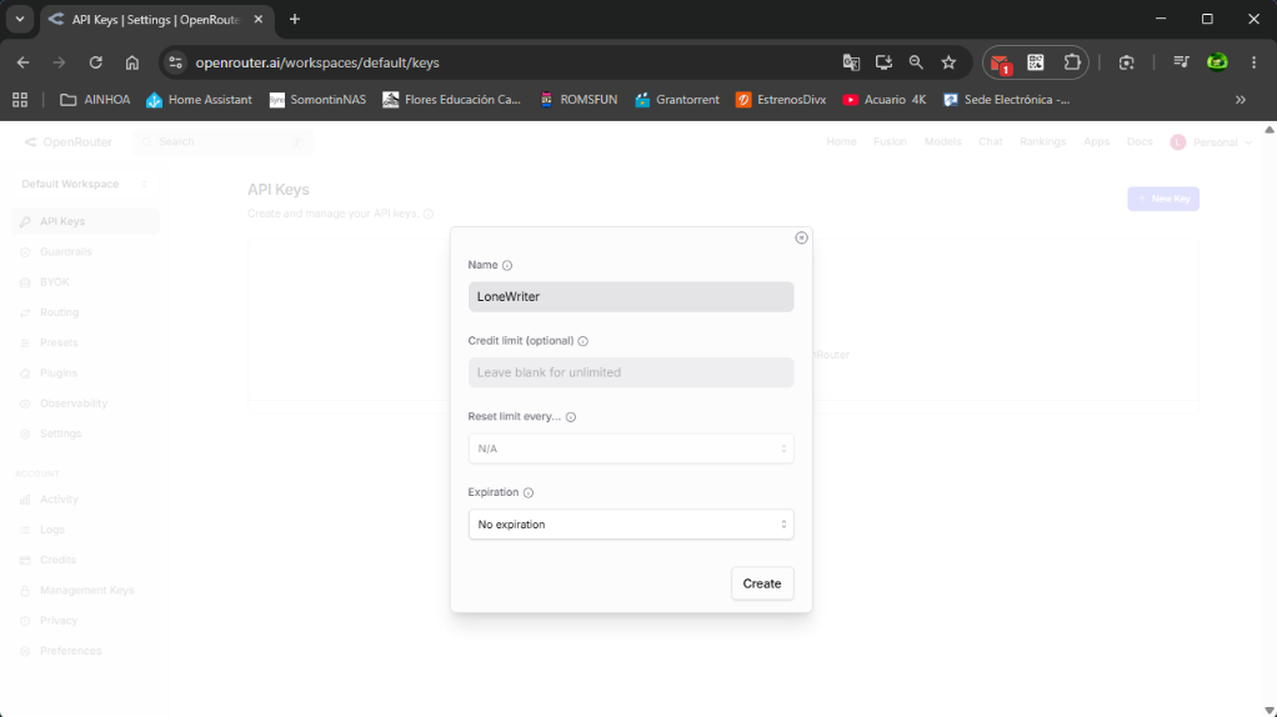
- Assign a name to the Key (e.g., LoneWriter) and click Create.
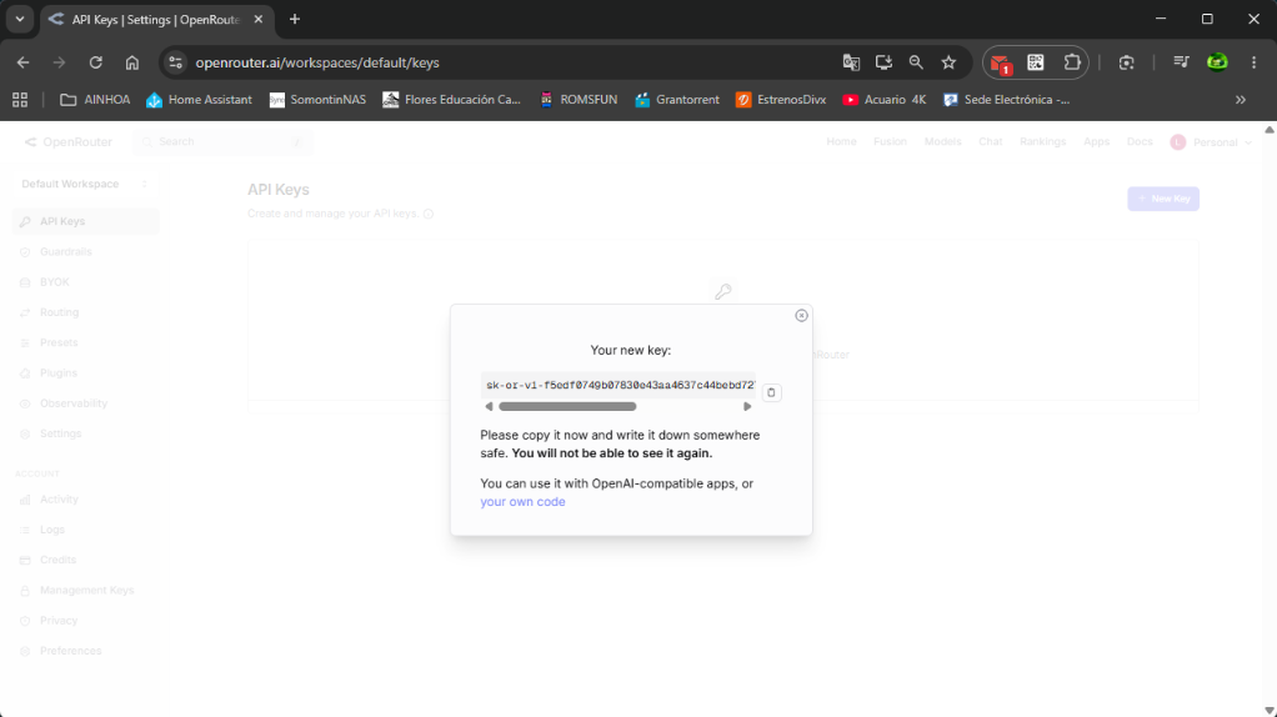
- Copy the newly generated key.
Configuration in LoneWriter
Once you have your API key, the final step is to link it within the application so that the Oracle and MPC can start assisting you.
Steps:
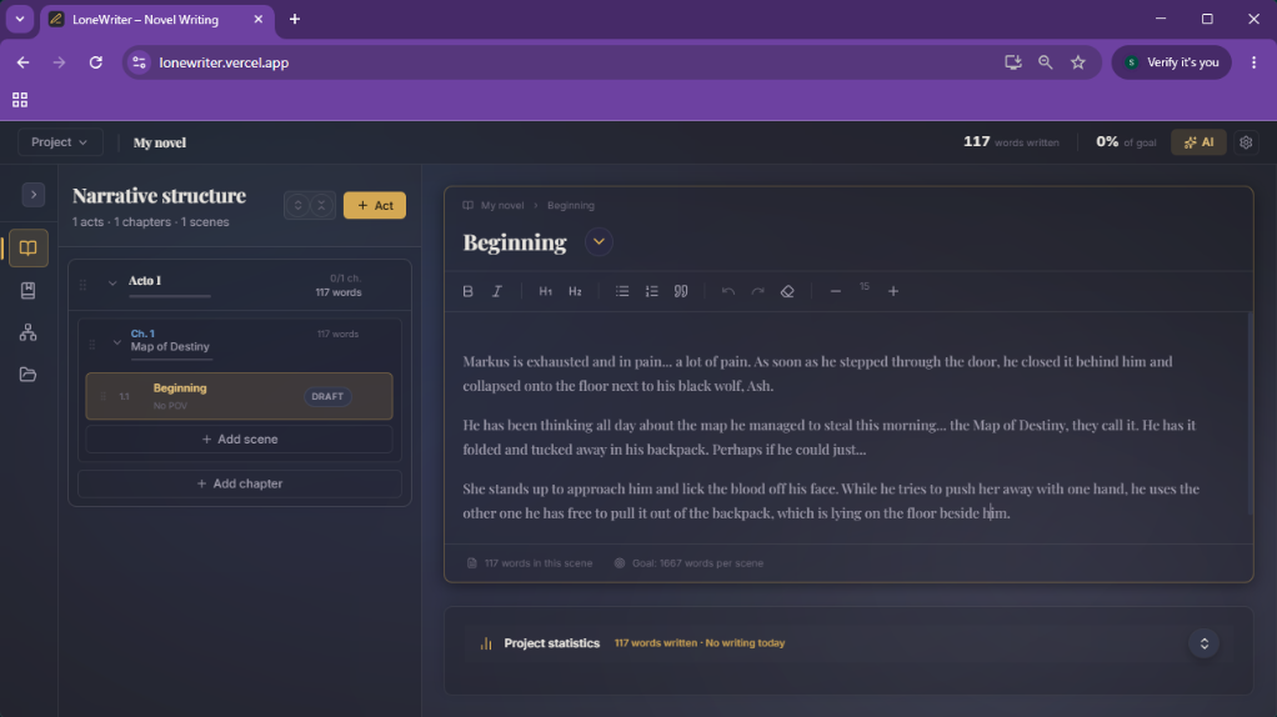
- Open any novel in LoneWriter and click on the gear icon (Settings) in the top right corner.
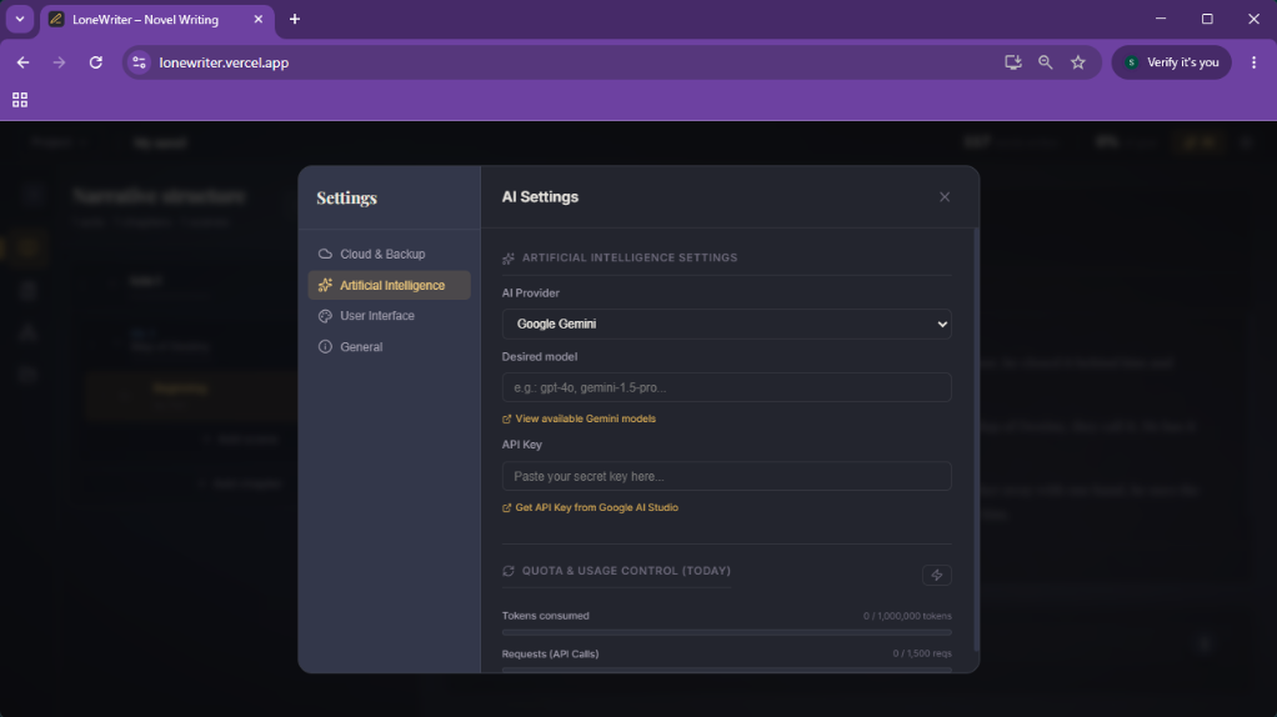
- Navigate to the Artificial Intelligence section in the settings sidebar.
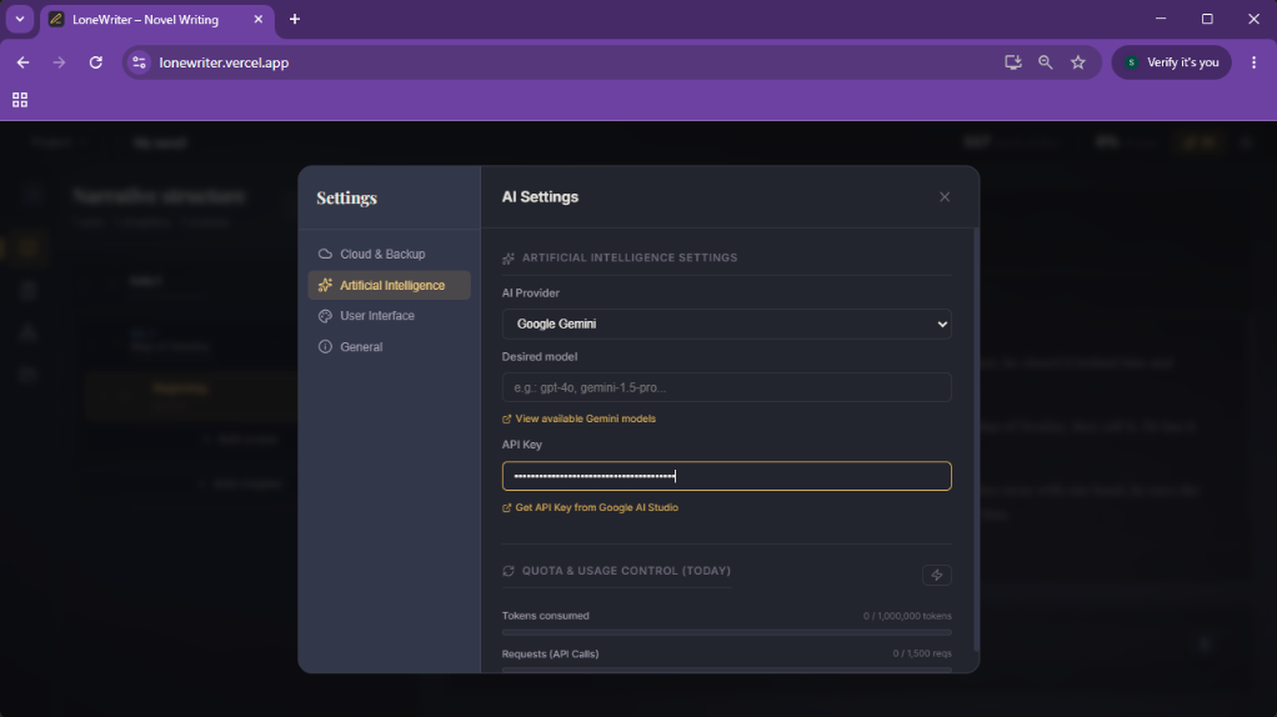
- Select your Provider (e.g., Google Gemini) and enter the API Key in the corresponding field.
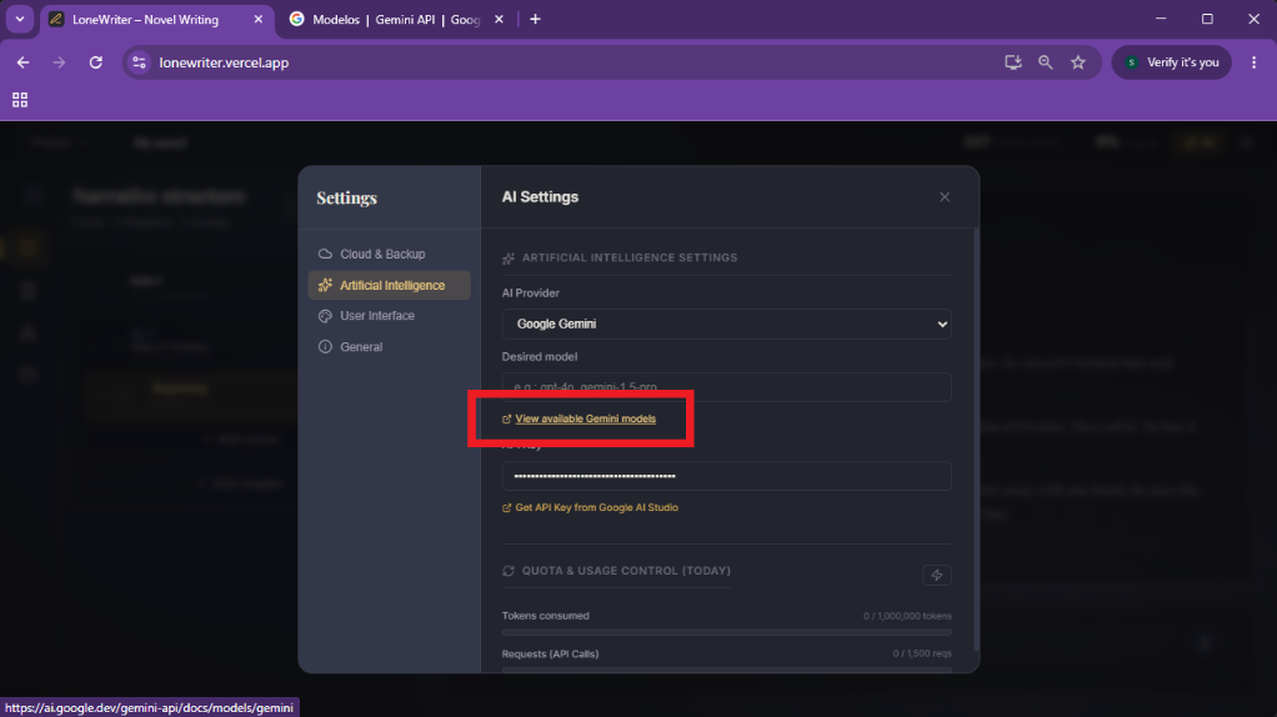
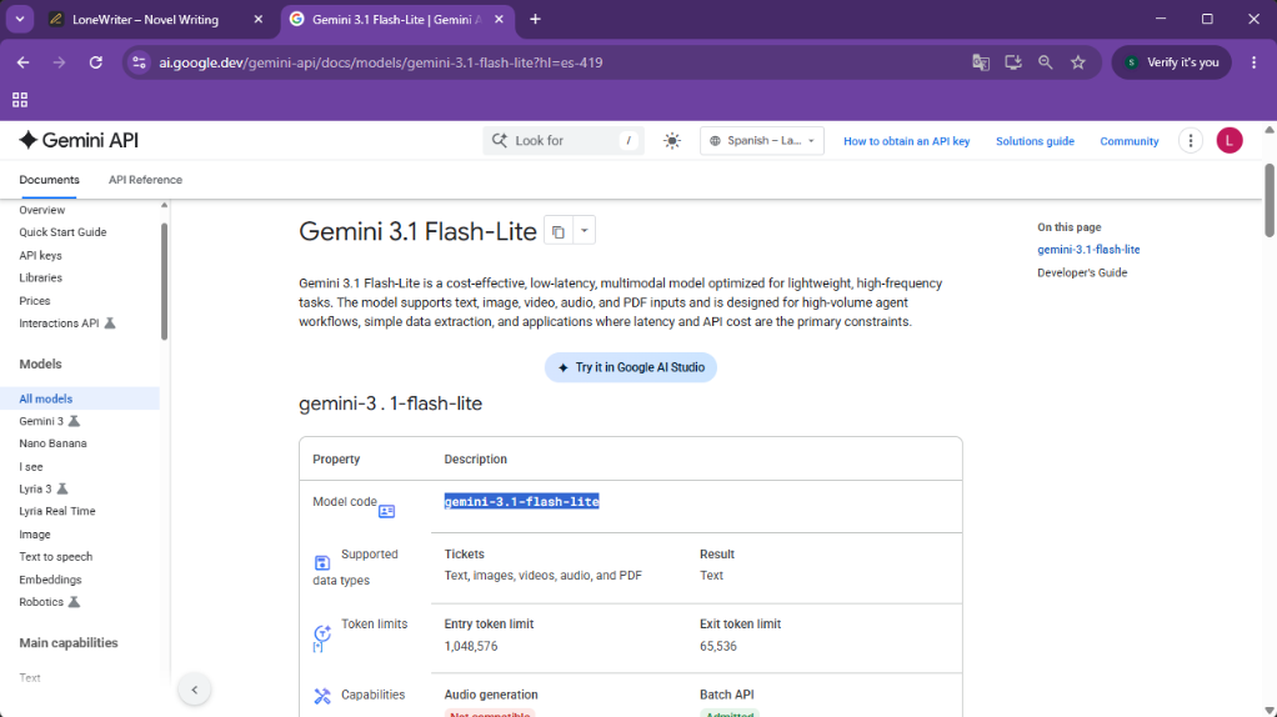
- For the Model, you can use the provided link ("View available models") to see the official technical names for each provider.
- Choose your preferred model (e.g.,
gemini-3.1-flash-lite), copy it, and paste it into the Desired model field.
CONNECTION TEST
We recommend clicking the connection test button to verify that everything is correctly configured before you start writing. If the indicator lights up green, the configuration is correct.
Next step
Once your connection is configured, learn how to use the LoneWriter Editor to bring your story to life.