
The Editor
The LoneWriter editor has been designed to minimize distractions and maximize creative flow, integrating artificial intelligence tools organically.
The Writing Area
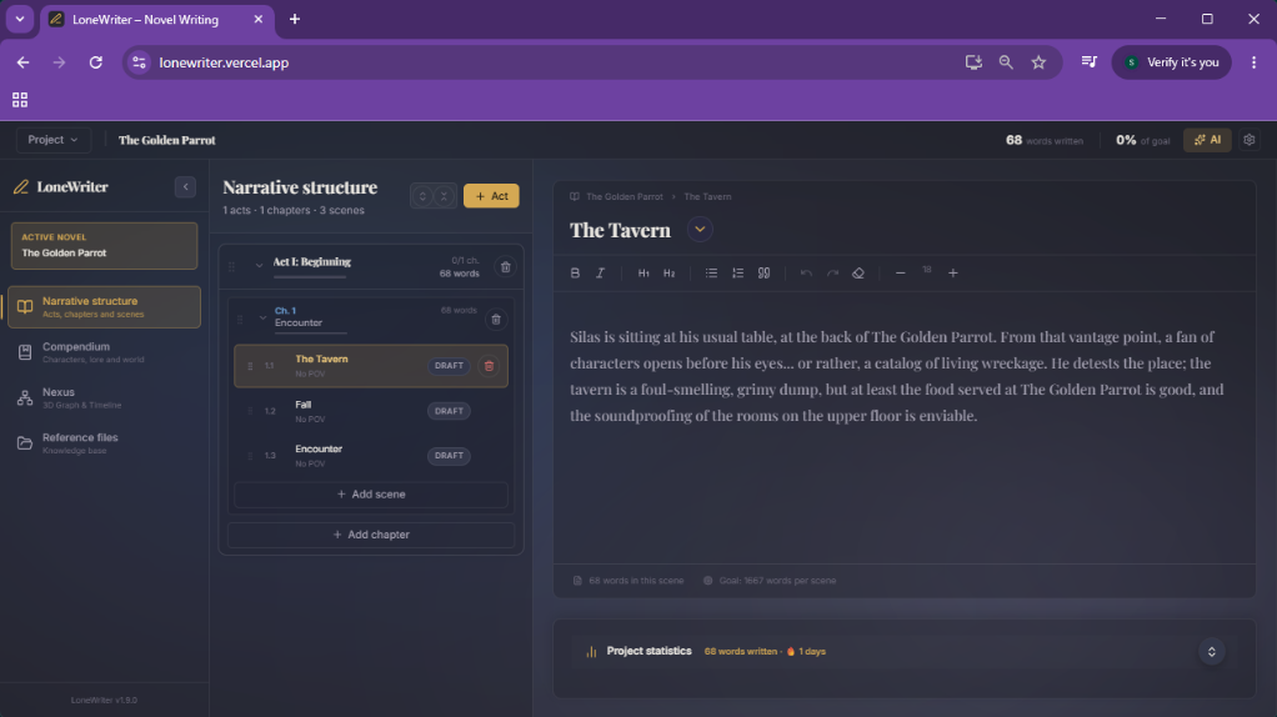
The heart of the application is a rich text editor that supports basic formatting. Its clean design allows focusing exclusively on the word.
Act, Chapter, and Scene Management
LoneWriter organizes your work into hierarchical logical units (Acts > Chapters > Scenes) to facilitate navigation and data indexing.
How to structure your story
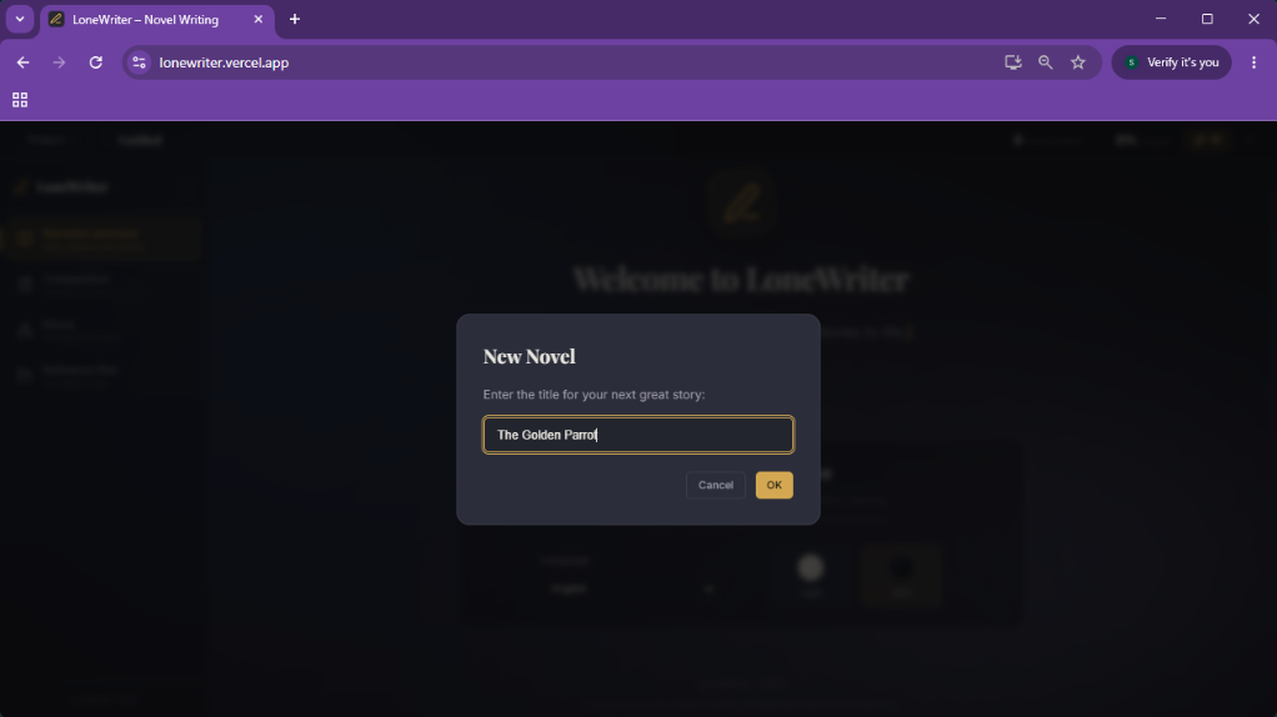
- Creation: The first step is to create a novel; you can give it any name you wish.
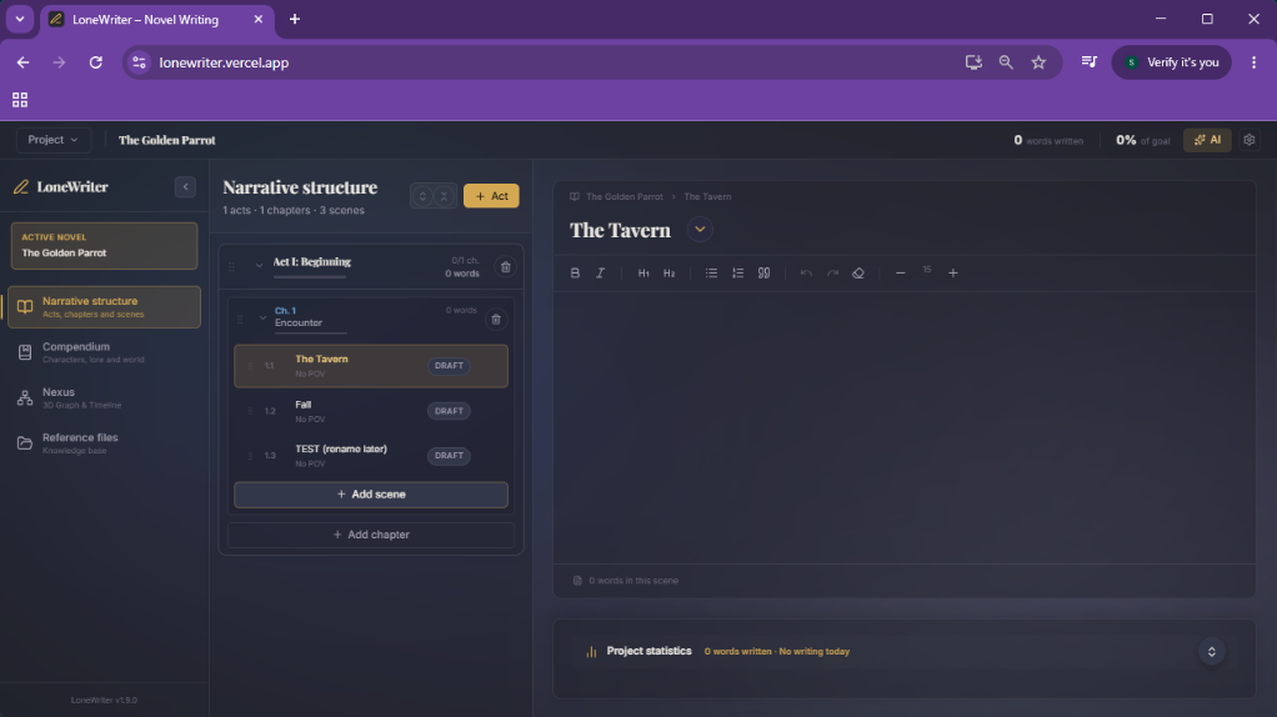
- Hierarchy: The new project creates an act by default. From the "Narrative Structure" side menu, you can create new acts, chapters, and scenes as needed.
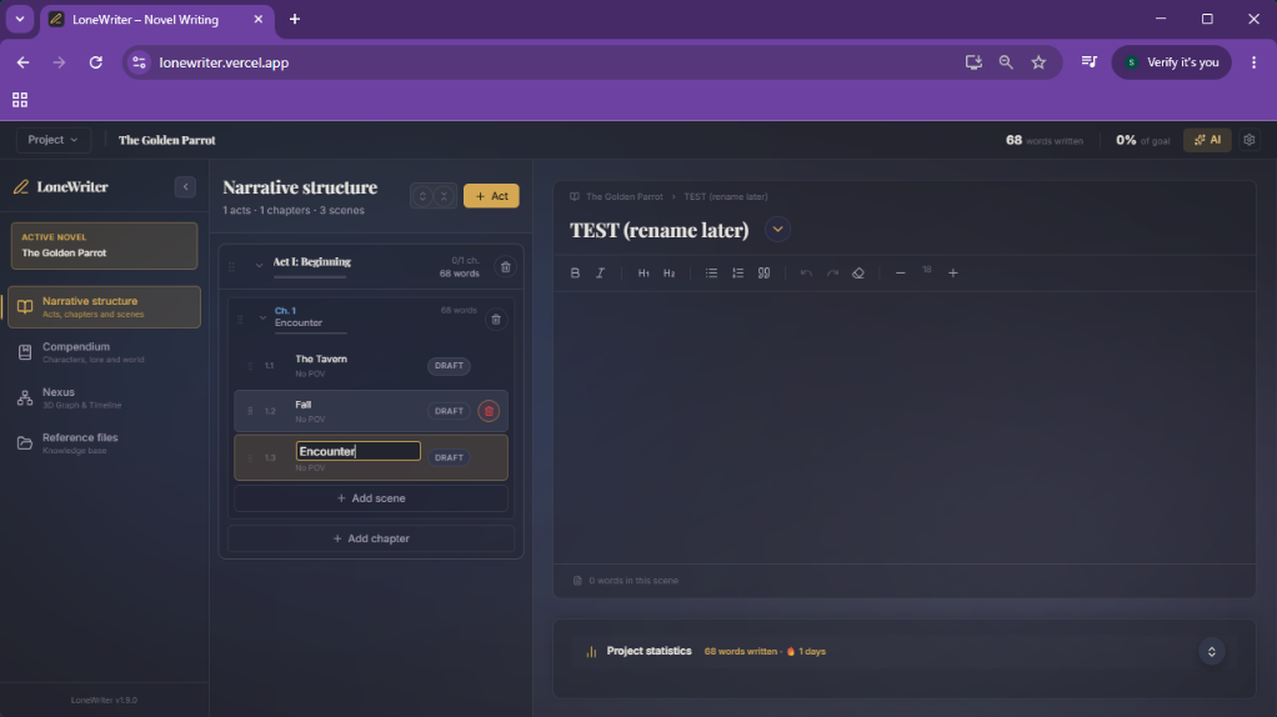
- Editing Titles: You can rename any act, chapter, scene, or even the novel's title by simply double-clicking on the item you want to modify.
- Workflow: Once the structure is defined, you can start writing and use the AI tools at your disposal directly in the editor.
- Flexible Organization: You can drag scenes to reorder them or move them to a different chapter. You can also reorganize entire chapters or acts using the drag icon located to the left of each element.
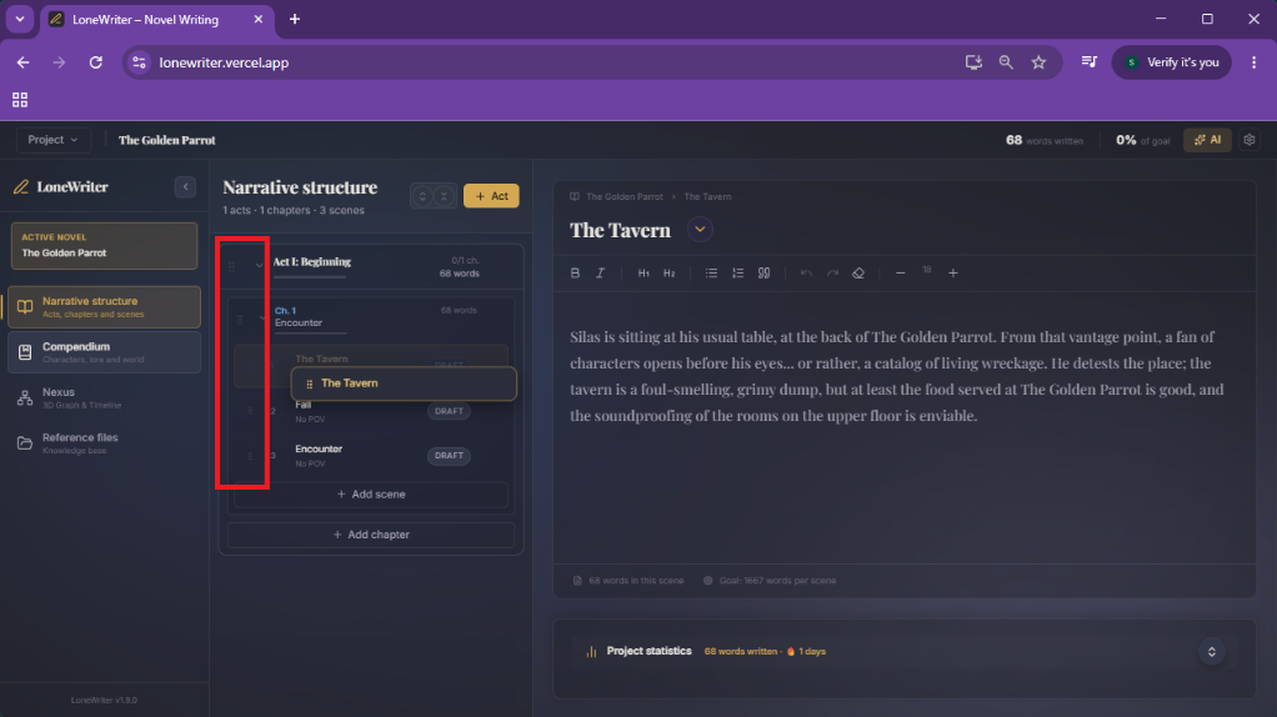
Options included in the Editor
The editor is not just a text canvas; it includes integrated tools to manage metadata and the progress of each scene.
Scene Configuration and Statistics
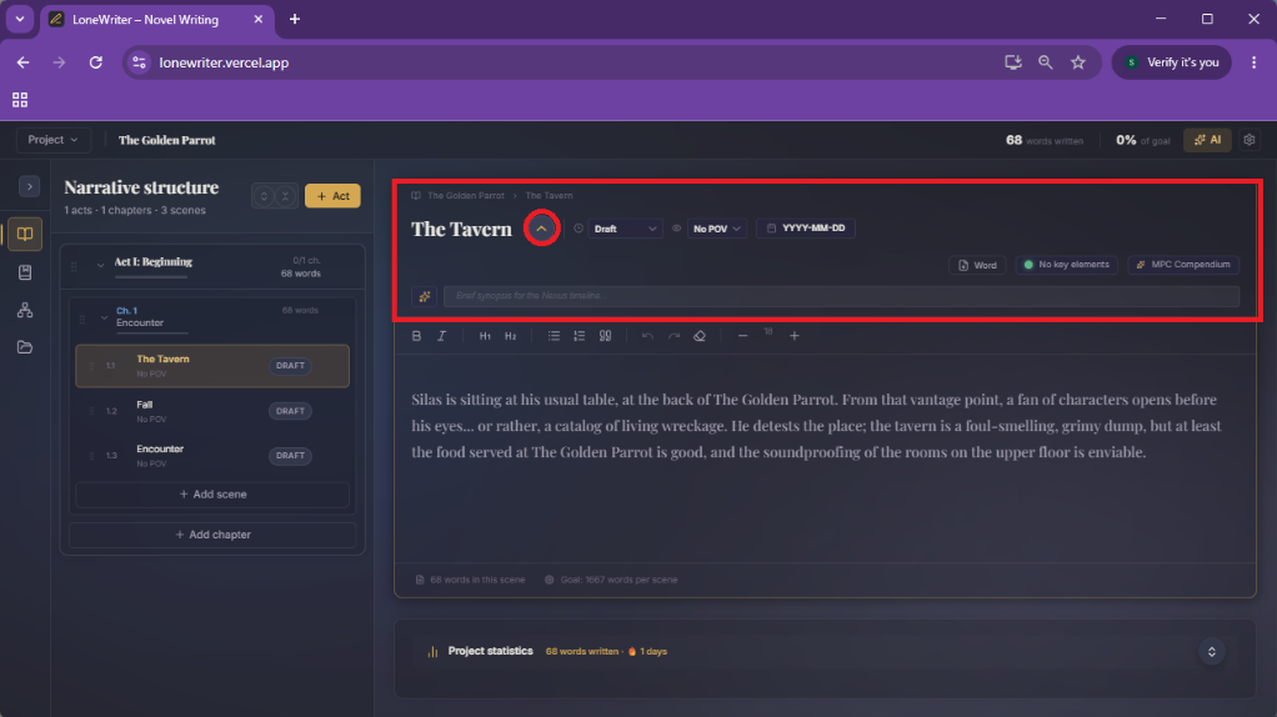
- Scene Tools: Next to the scene name or title, you'll find a Chevron (arrow) that expands tools related to other LoneWriter functions.
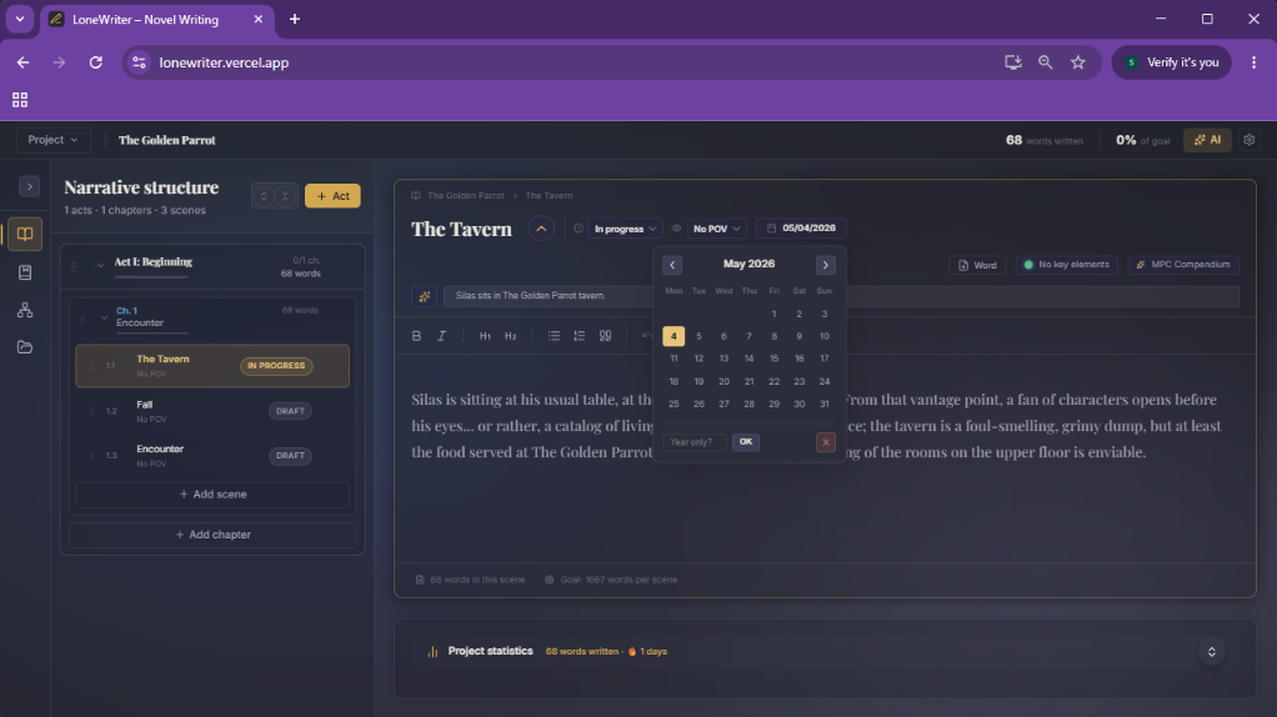
- Metadata and Nexus: From this section, you can change the scene status (Draft, In Progress, Completed), assign the POV (Point of View), and set the date and synopsis. This data is essential for the Nexus chronological visualizations.
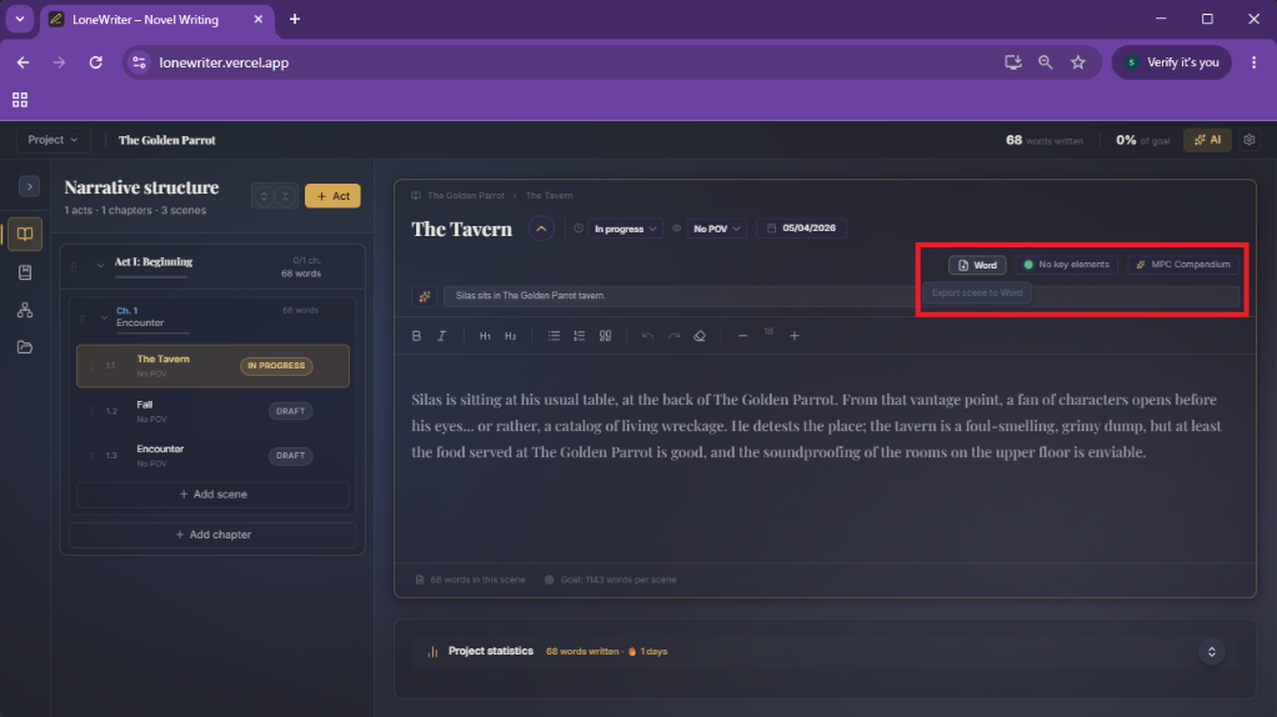
- AI Tools and Export: Next to the .docx export button, you'll find buttons for advanced AI functions like "No Key Elements" and "MPC Compendium" (which we will cover in detail later).
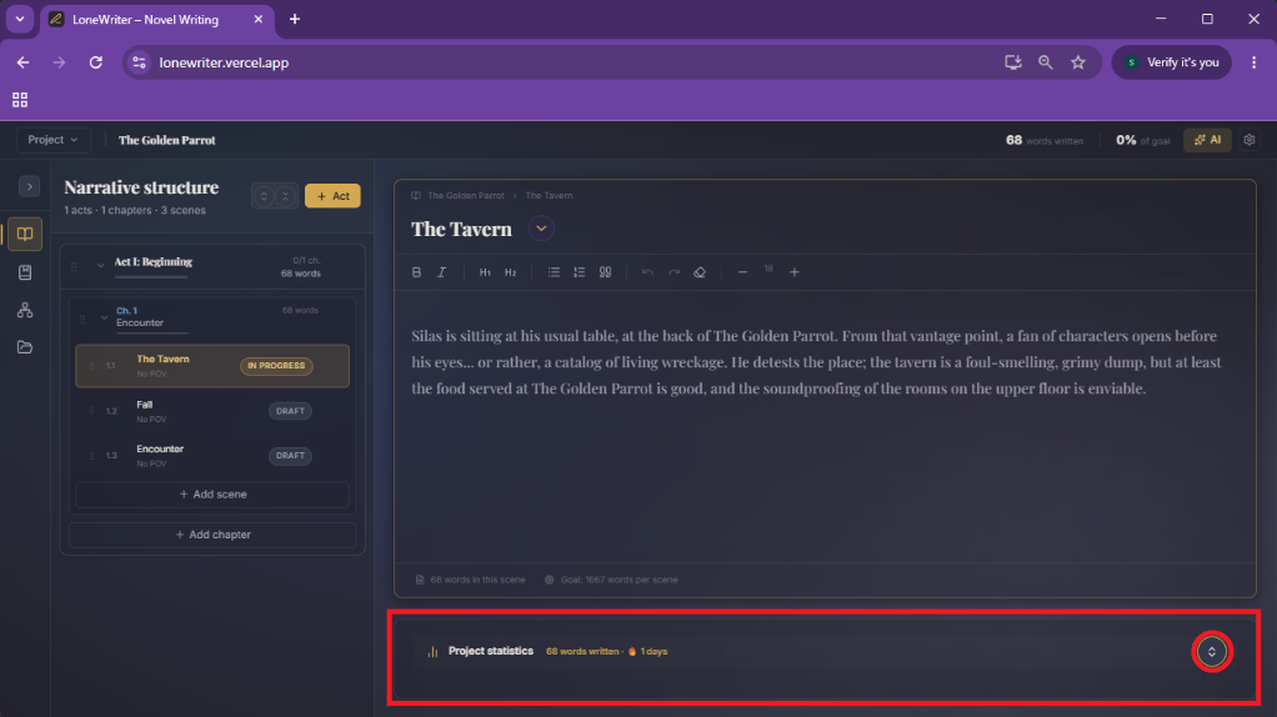
- Detailed Statistics: The Project Statistics section at the bottom can also be expanded to provide more information about your writing pace.
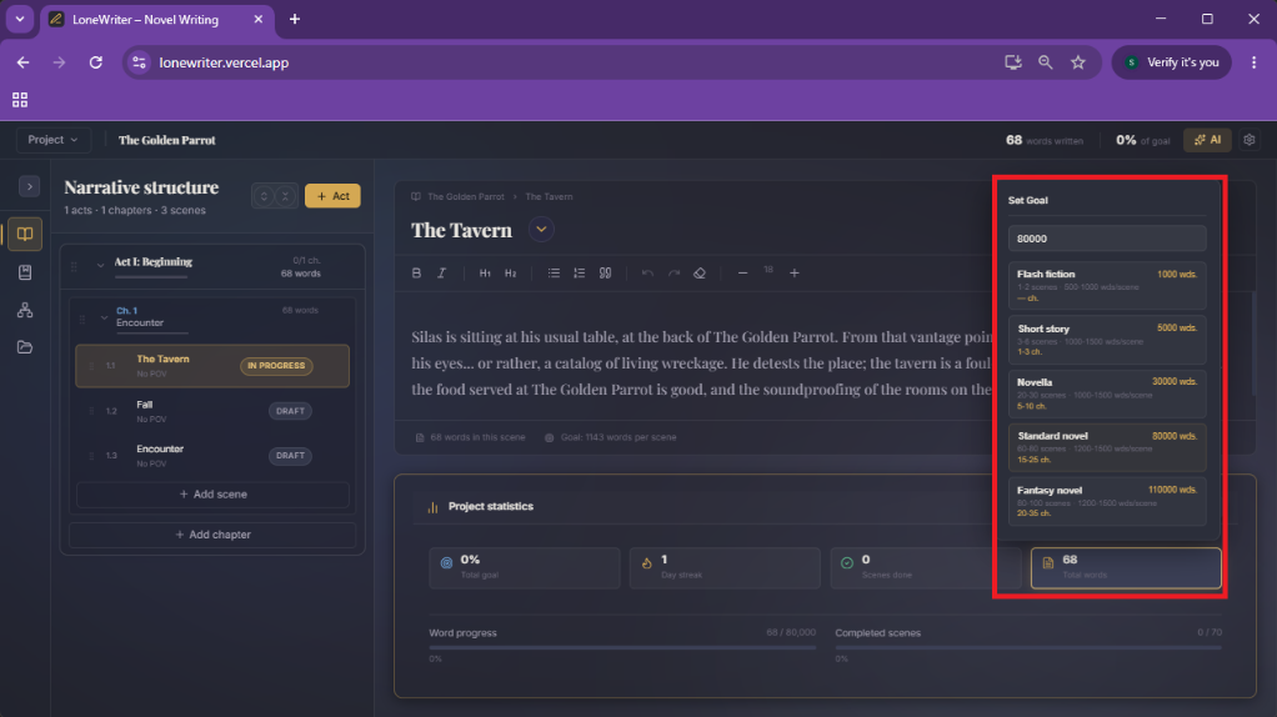
- Writing Goals: The "total words" counter is an interactive button. By clicking it, you can configure different types of writing (Short story, Standard novel, etc.) and their respective lengths to track your goals.
AI Panel
Beyond the text, the editor integrates a panel of smart tools designed to assist in the creative process without breaking the workflow.
Assistance Tools
- Oracle: Your direct connection to the world's knowledge. It allows you to query the lore, characters, or plots you have defined in your project (see The Oracle).
- MPC: The Compendium Proposal Monitor analyzes your text to suggest new entries or updates for your personal encyclopedia (see The MPC).
- Rewriting: A set of tools to polish, expand, or change the tone of specific fragments of your manuscript.
- AI Settings: Allows you to switch between different models (local or cloud) and adjust generation parameters on the fly.
TIP
You will find detailed guides on the deep functioning of each of these tools in their respective sections of the documentation.
Automatic and Local Saving
The security of your texts is a priority.
- Persistence: Data is automatically saved in your browser's local database (IndexedDB).
- Saving Status: A visual indicator confirms that your work is safe after each change.
NOTE
Although saving is automatic, it is recommended to perform periodic exports or configure synchronization with Google Drive for added security.
Next step
Learn how to polish your prose with Smart Rewriting or start building your world in The Compendium.